Connecting Gmail and Jira to watsonx Orchestrate: A Complete OAuth2 Setup Guide
Orchestrate has hundreds (literally, hundreds) of pre-built agents which completely streamline users' time to production. The only barrier between users and these pre-built agents is actually providing the credentials to connect to them. This step is easy, in theory, but Orchestrate's documentation on how to get the required credentials for its pre-built tools leaves something to be desired.
And because of that, I have put together this blog post which shows you how you can quickly connect several of Orchestrate's Jira and Google agents to your applications. Or, at least, how I was able to get these agents to work.
Understanding OAuth2 in Orchestrate
Before we dive in, here's the good news: when you use Orchestrate's pre-built connections, you don't need to become an OAuth expert. Orchestrate handles all the annoying parts for you:
- Token storage - Your access tokens are automatically stored securely
- Refresh tokens - When your token expires, Orchestrate automatically refreshes it without you having to re-authenticate
- Token management - All the encryption and secure storage happens in the background
Basically, you authenticate once, and Orchestrate takes care of everything else. No worrying about token expiration, no building refresh logic, no dealing with secure storage. It just works!
Part 1: Connecting to Gmail
Step 1: Create a Google Cloud Project
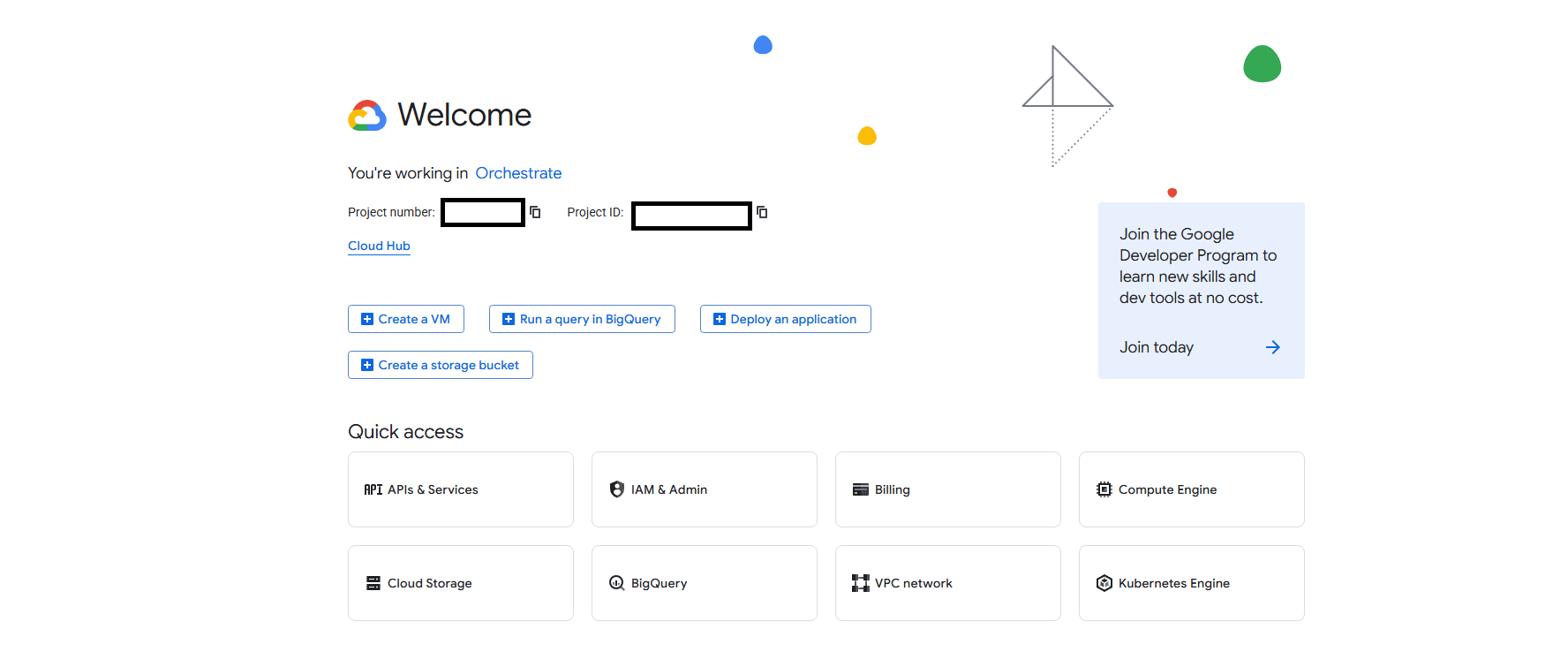
First, head to the Google Cloud Console and create a new project. Once you are in the dashboard for your new project (pictured below), navigate to "APIs & Services," the first option in the Quick Access section of your dashboard.
Step 2: Create and Configure Your Project
Click on Credentials in the left sidebar to begin setting up OAuth:
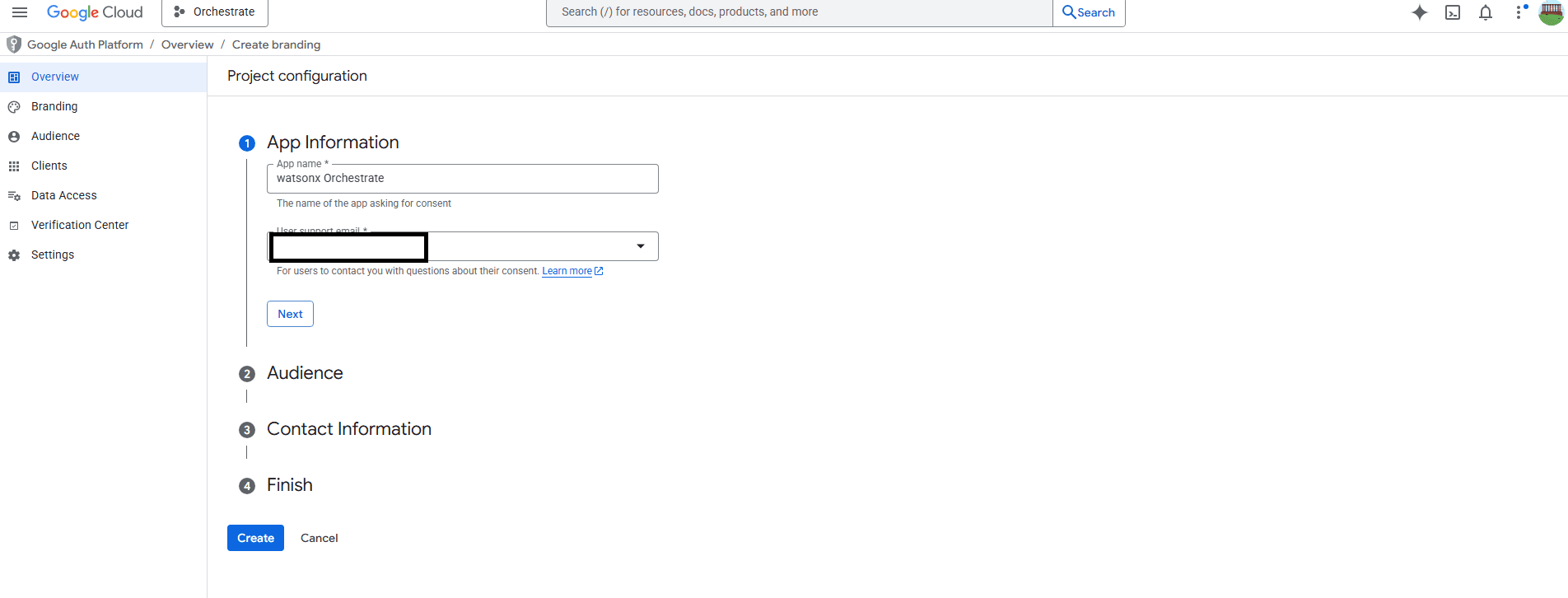
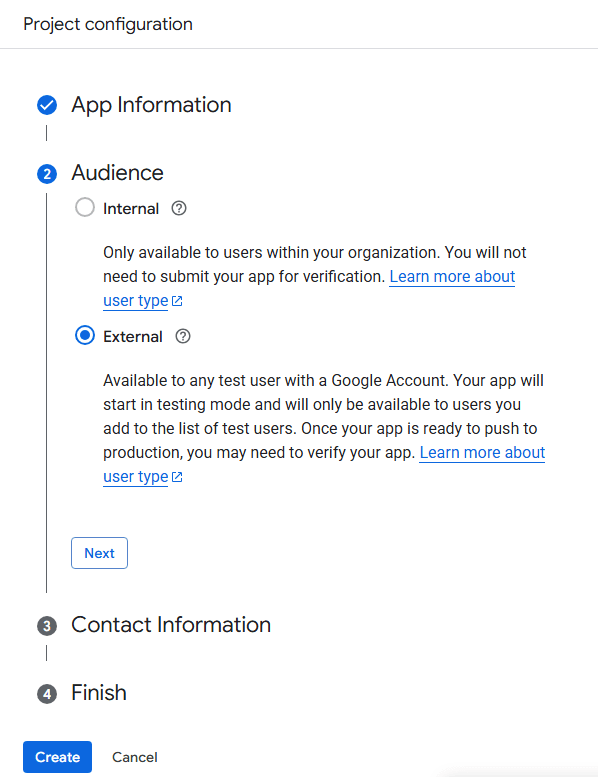
You'll need to configure the OAuth consent screen first. Select your app's audience - I chose "External":
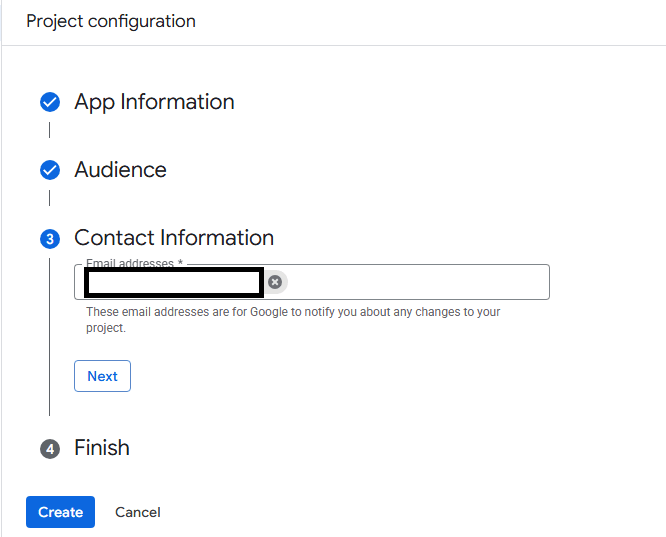
Next, fill in your app information and contact details:
Review and agree to Google's user data policy:
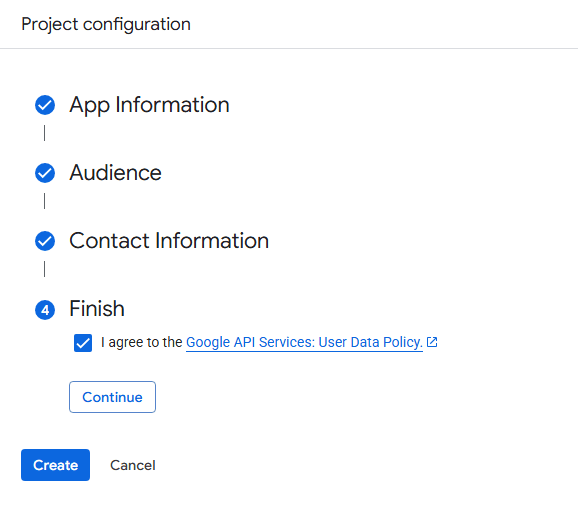
After completing the project setup, you'll be brought to a summary screen. Click the "Create OAuth client" button in the box under Metrics:
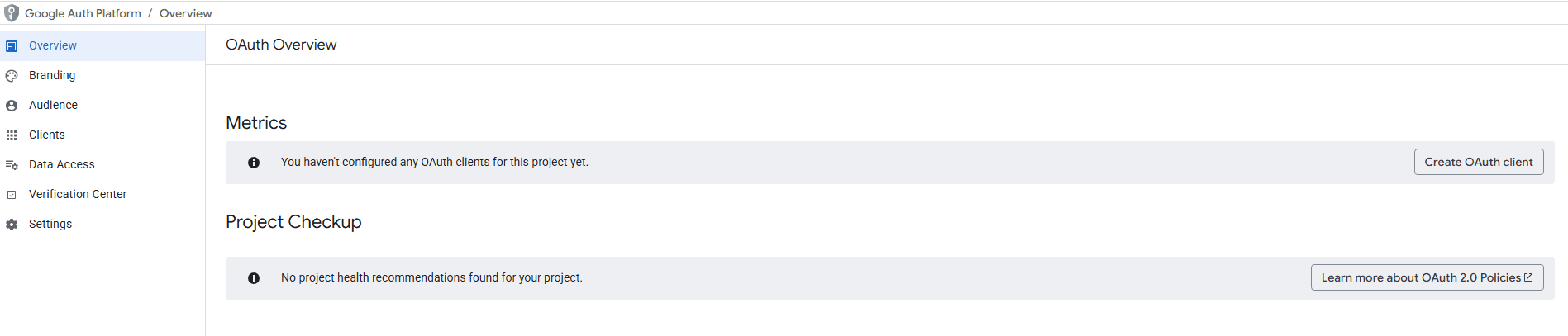
Step 3: Create OAuth Client ID
Important: When using the OAuth2 Authorization Code flow, you must configure the callback URL in your Google Cloud application. The callback URL follows this format:
<env_url>/mfe_connectors/api/v1/agentic/oauth/_callback
For example, if your watsonx Orchestrate environment URL is 'https://dl.watson-orchestrate.ibm.com/', your callback URL would be:
https://dl.watson-orchestrate.ibm.com/mfe_connectors/api/v1/agentic/oauth/_callback
Now fill out the OAuth client ID creation form:
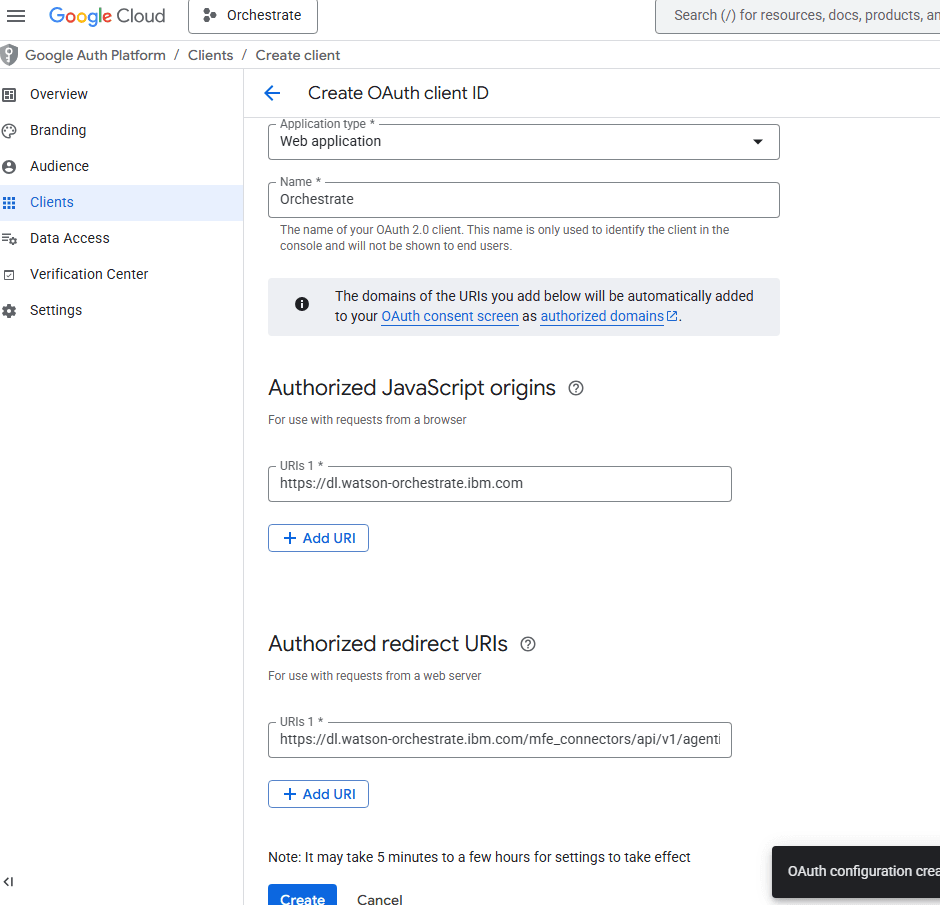
- Application type: Web application
- Name: Orchestrate (or whatever you prefer)
- Authorized JavaScript origins:
https://dl.watson-orchestrate.ibm.com(optional, but I added it) - Authorized redirect URIs: Your callback URL from above - this is critical to get right!
Click Create, and you'll see a success modal displaying your Client ID and Client Secret.
Save these credentials! You'll need both the Client ID and Client Secret for the watsonx Orchestrate connection configuration.
Step 4: Enable Required APIs
Before configuring Orchestrate, you need to enable the necessary Google APIs. Navigate to the Google Cloud API Library and enable:
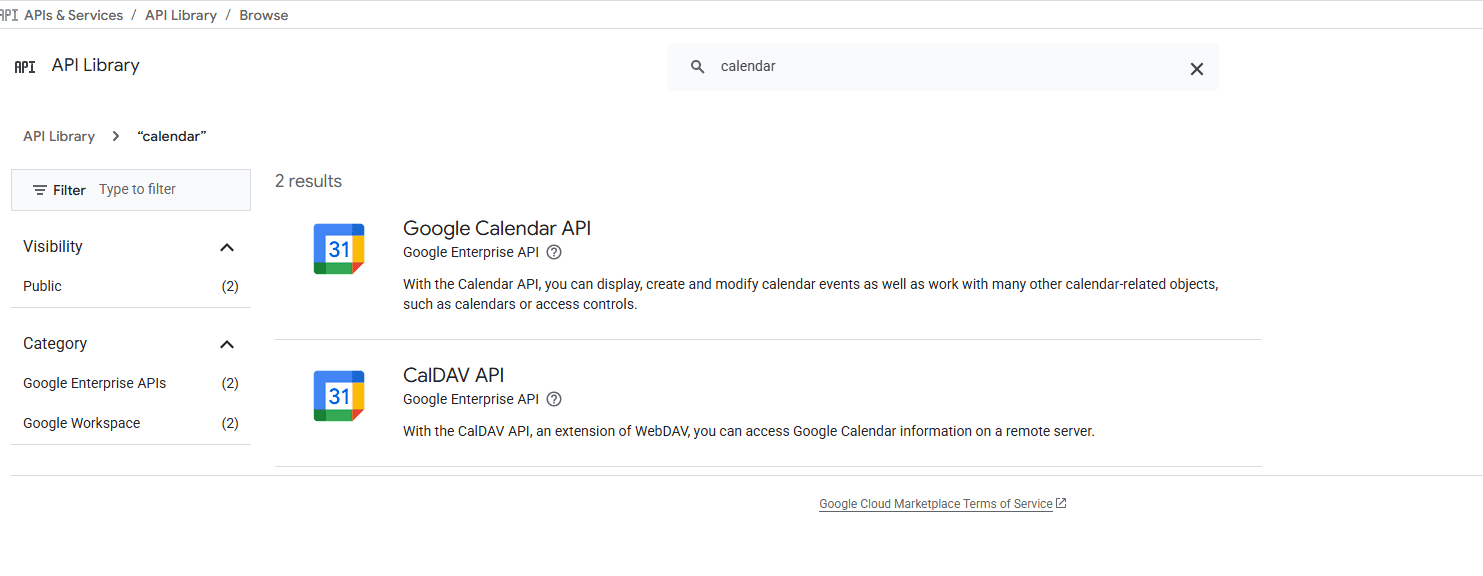
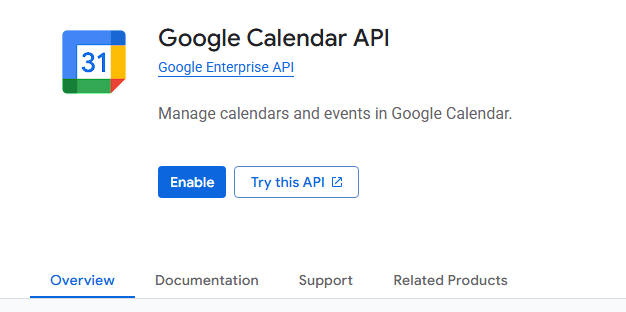
Step 5: Configure API Scopes in Google Cloud
Return to your OAuth2 client configuration in Google Cloud Console and add the necessary scopes under Data Access:
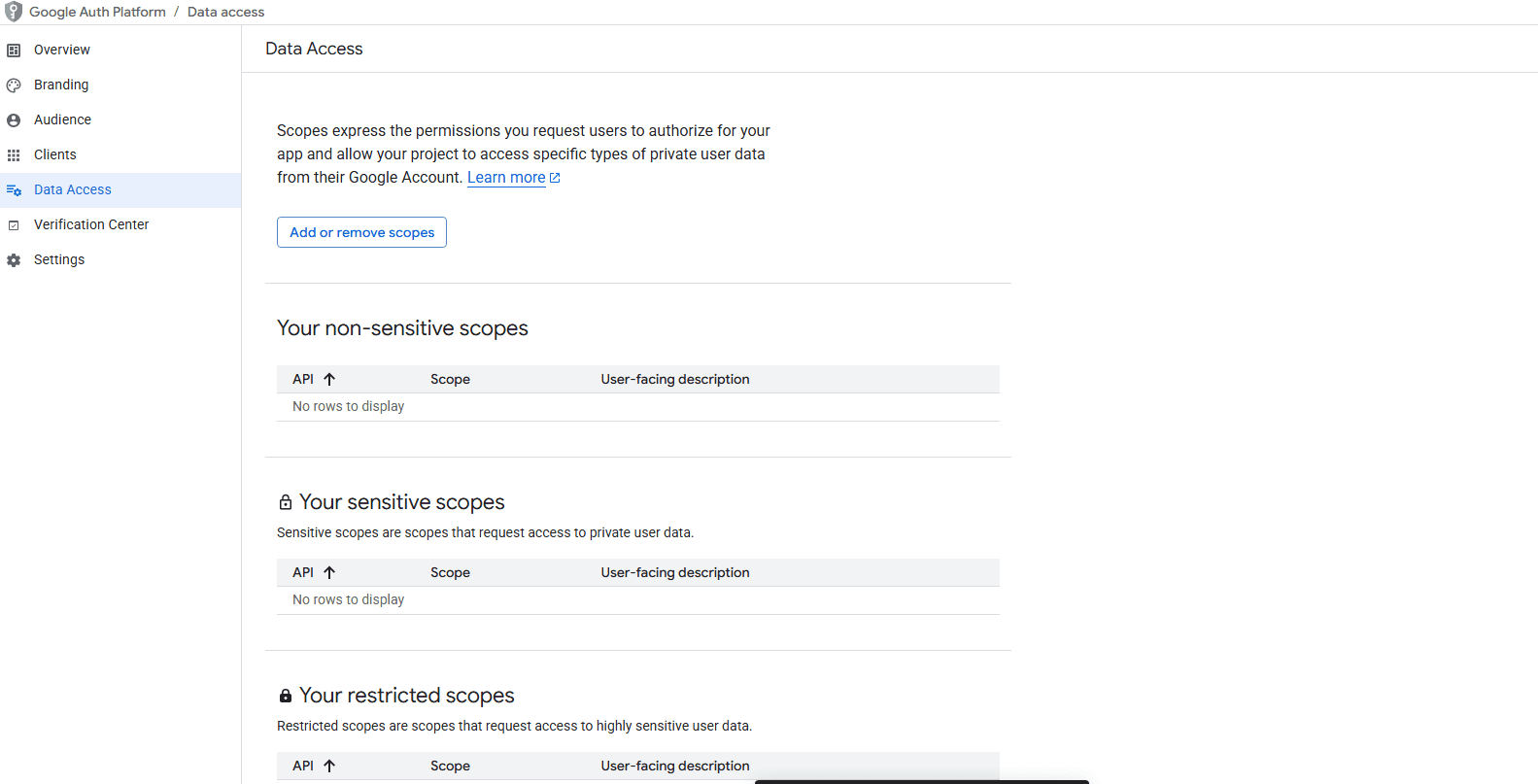
Click Add or Remove Scopes and select the scopes you need:
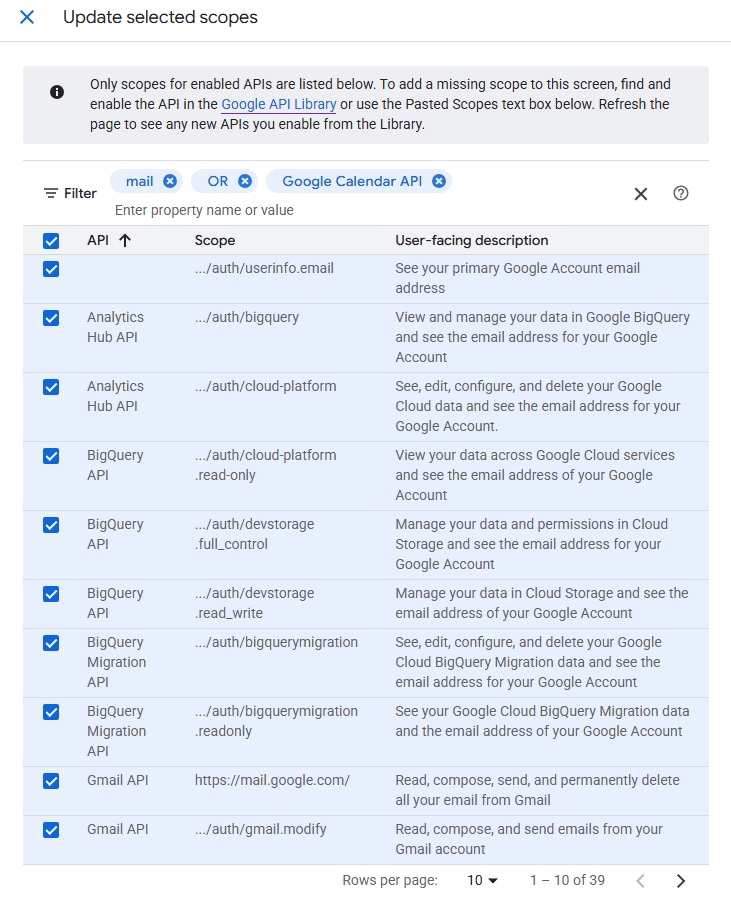
For Gmail and Calendar access, add these scopes:
https://mail.google.comhttps://www.googleapis.com/auth/calendar
Step 6: Configure watsonx Orchestrate Connection
Now that Google Cloud is fully configured, switch to your watsonx Orchestrate environment. Navigate to Connections from the hamburger menu:
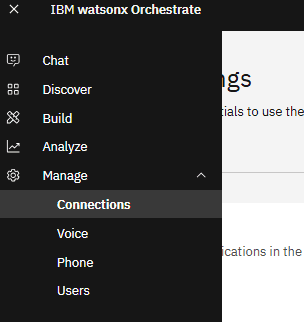
Find the connection named google_oauth2_auth_code_ibm_184bdbd3 (or similar):
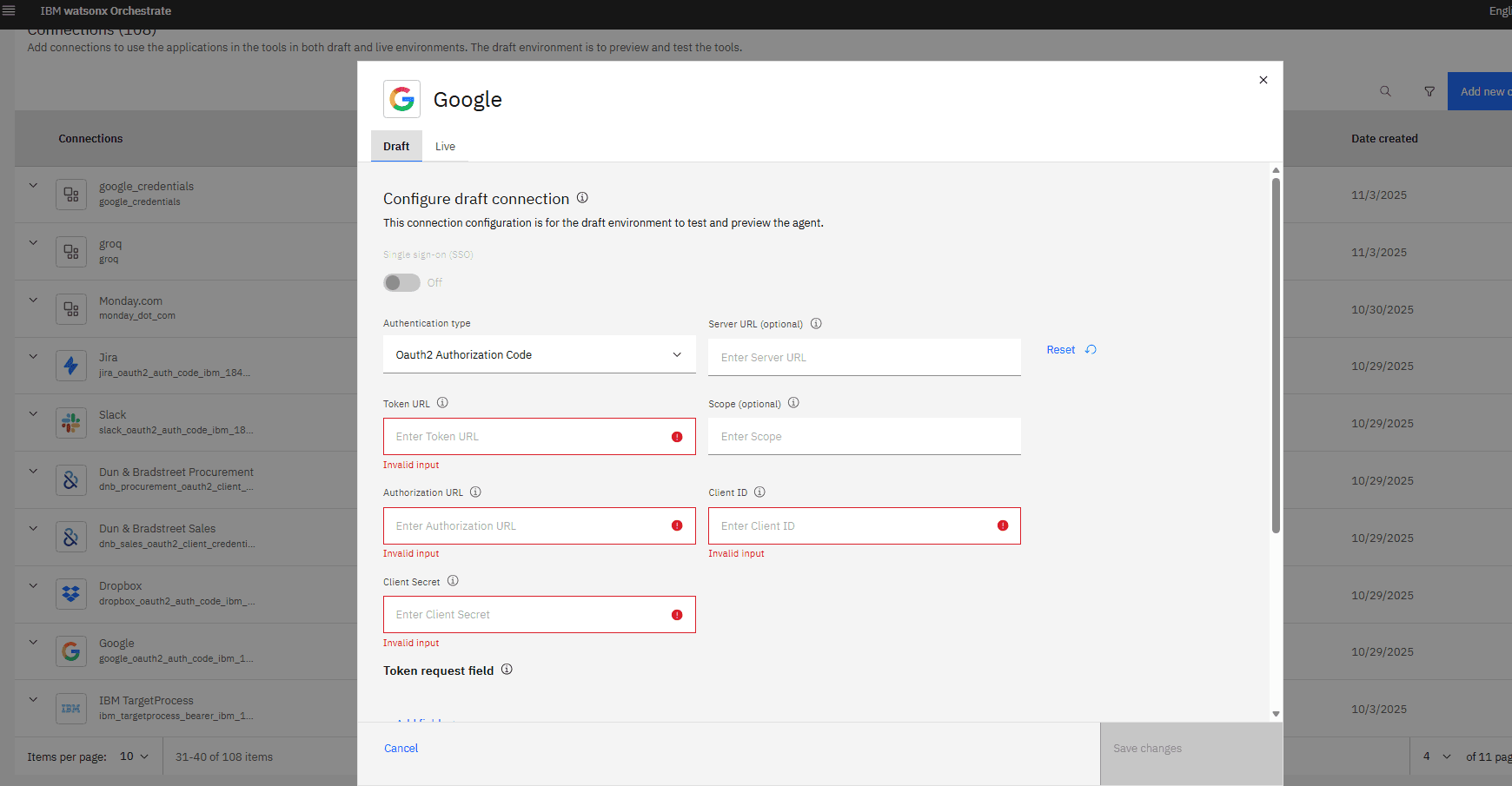
Click on the connection to open the configuration form. You'll need to fill in several fields:
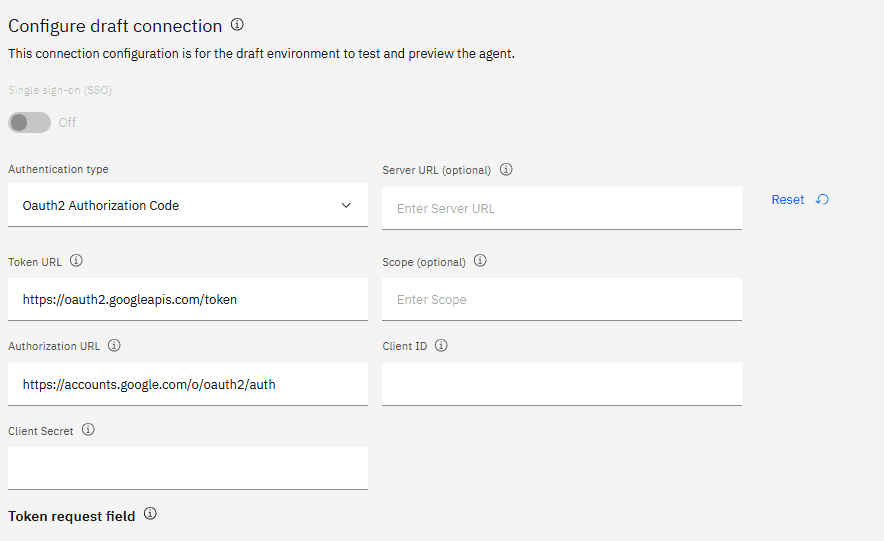
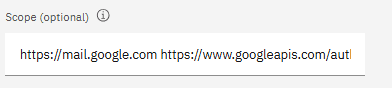
Enter your credentials and configuration:
- Client ID: From the Google Cloud Console
- Client Secret: From the Google Cloud Console
- Auth URL:
https://accounts.google.com/o/oauth2/v2/auth - Token URL:
https://oauth2.googleapis.com/token - Scopes:
https://mail.google.com https://www.googleapis.com/auth/calendar - Base URL:
https://www.googleapis.com
A couple important things:
When entering scopes, separate them with spaces (not commas). I know, it's weird, but that's how Orchestrate wants them.
Also, you might be wondering why we're just using base URLs for the Auth URL and Token URL instead of the full endpoints with all the parameters. Here's the thing: Orchestrate actually constructs the complete OAuth endpoints for you on the backend. It takes these base URLs and automatically appends your Client ID, redirect URI, and all the other necessary parameters.
So as a general rule when setting up OAuth connections in Orchestrate: just use the base endpoint URLs. Don't try to build the full URLs yourself with query parameters and everything. Let Orchestrate handle that part - it'll save you from making mistakes and ensures everything works correctly.
Step 7: My Mistakes
Issue #1: Initial Connection Failure
When I first tried to test the connection, I encountered an error:
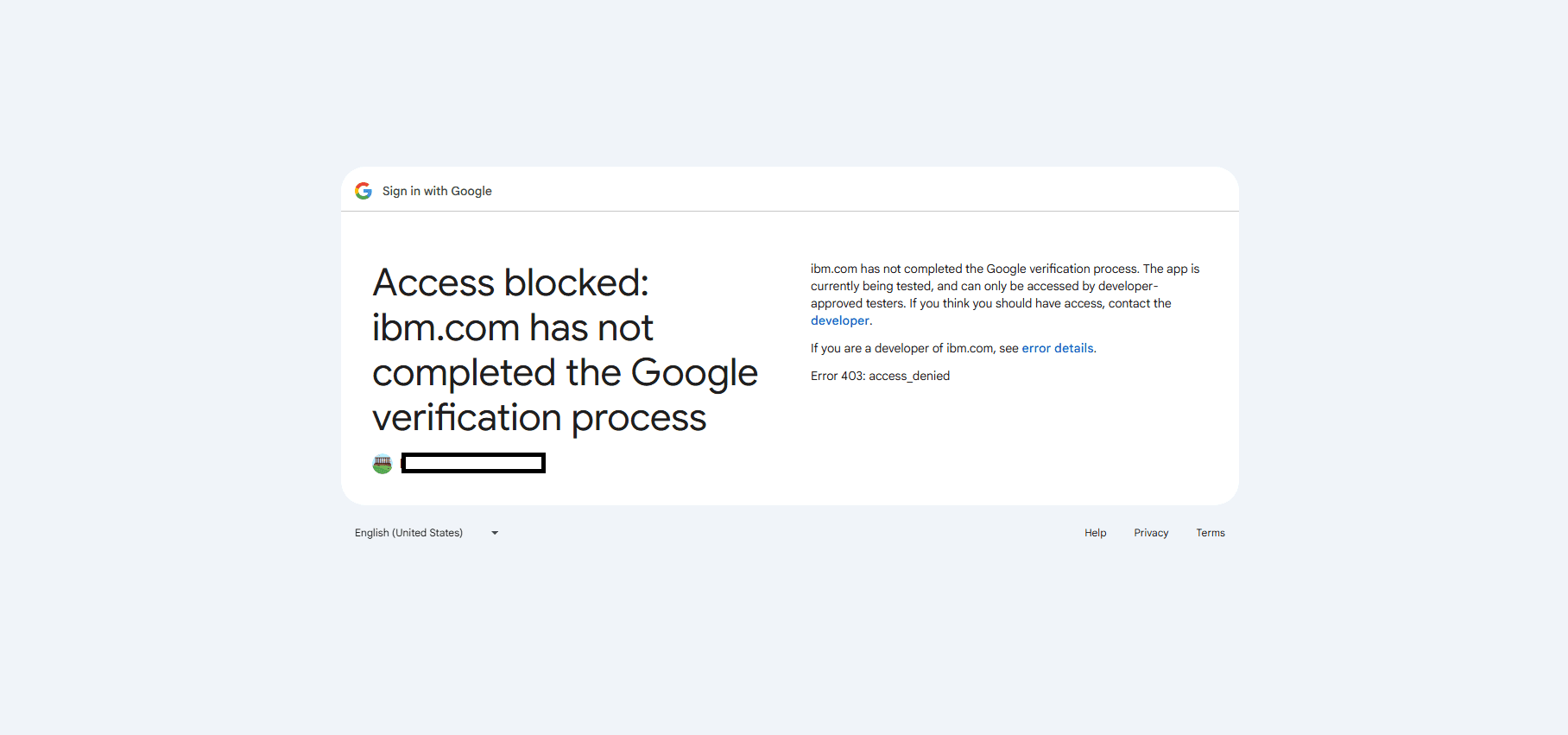
After researching the error, I realized it was because my app was still in "Testing" mode. Since I was the only user anyway, I decided to push the app to production in Google Cloud Console:
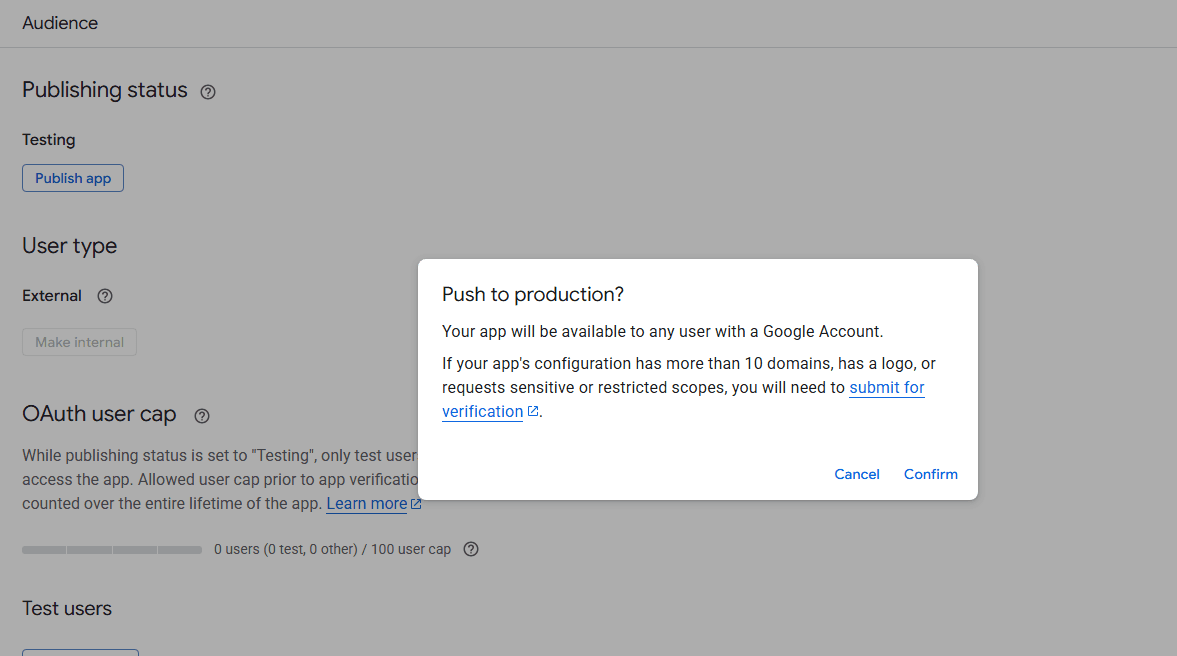
Issue #2: Google's Security Warning
When testing the connection again, Google showed a security warning because the app wasn't verified:
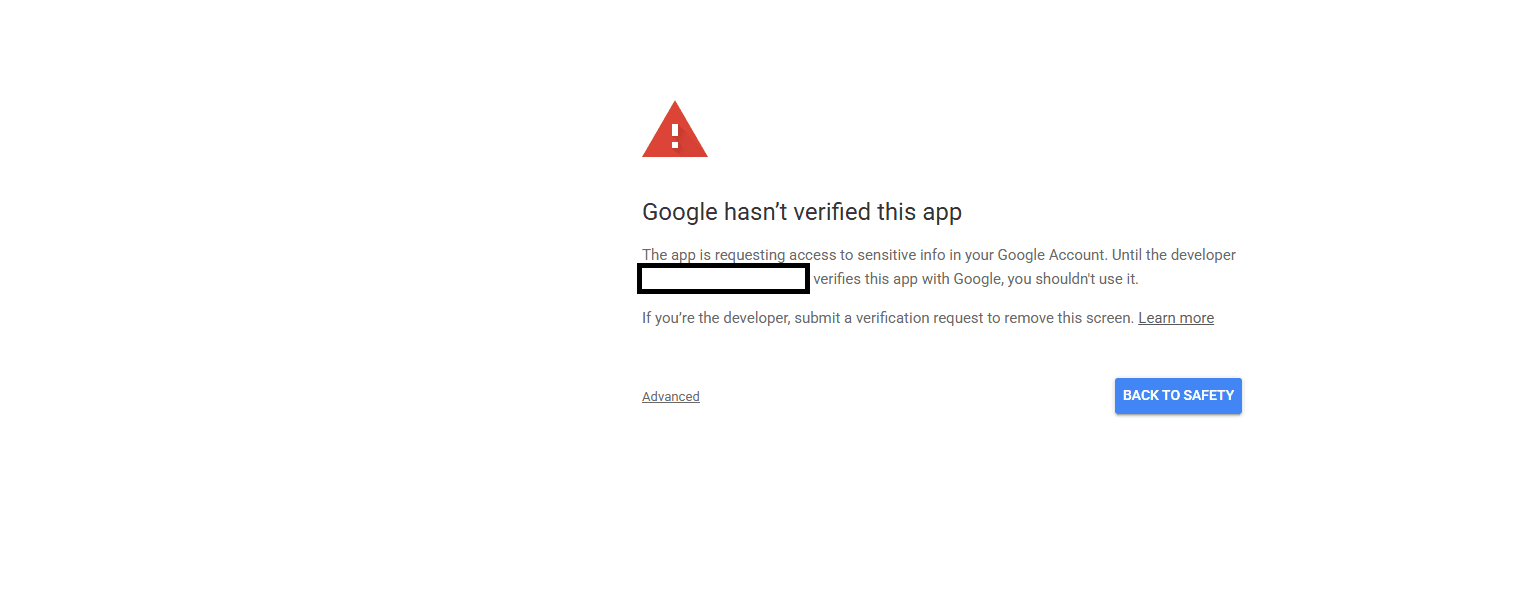
Since I'm the developer and this is for personal use, I clicked "Continue" to proceed with the authorization.
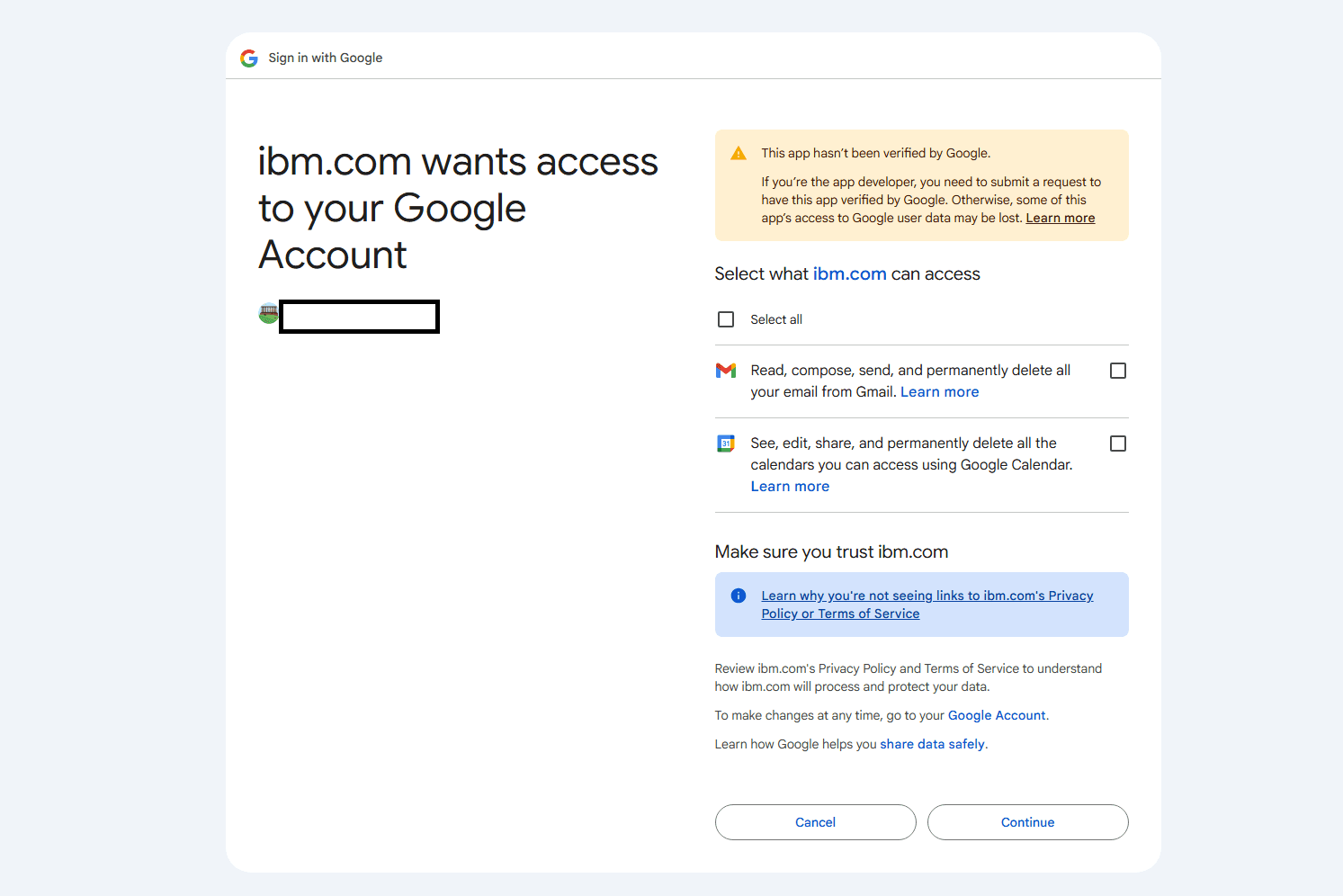
I granted all requested scopes, and finally—success!
Step 8: Testing with an Agent
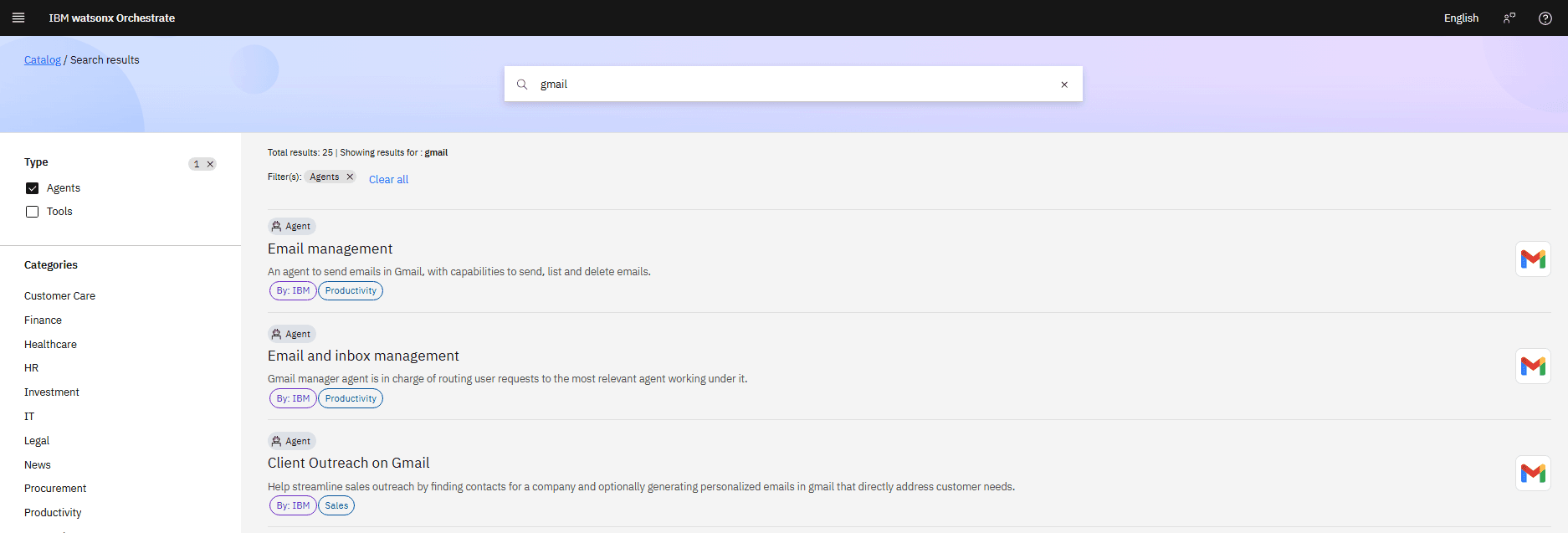
Now let's test the integration! Navigate to the Agent Catalog (hamburger menu > Catalog) and search for "gmail":
Issue #3: Missing Base URL
When I first tried to use the Email and Inbox Management agent, I encountered another error:
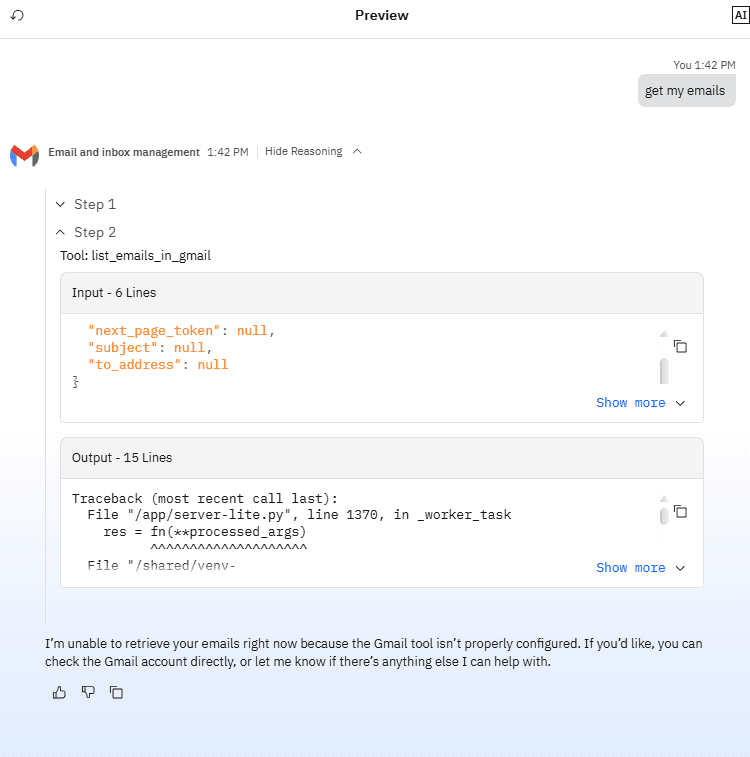
The error traceback revealed:
KeyError: <CredentialKeys.BASE_URL: 'base_url'>
The solution was to add the Google API base URL to the connection configuration. Go back to your connection settings and add:
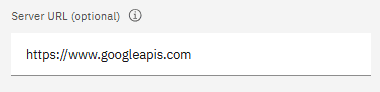
Base URL: https://www.googleapis.com
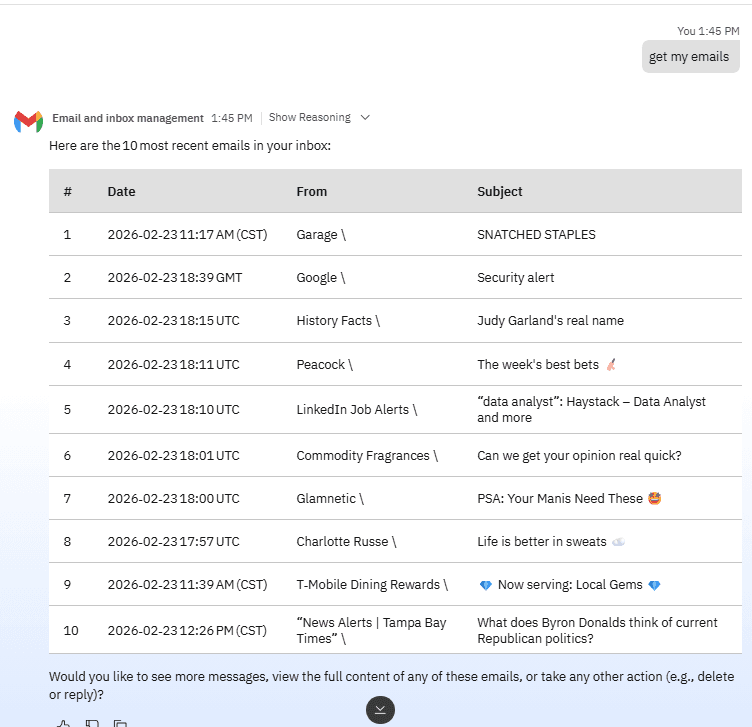
After adding the base URL, the agent worked perfectly:
Step 9: Team vs. Member Credentials
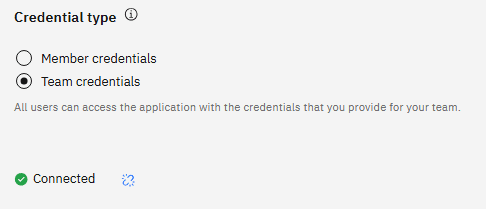
Important Security Consideration: I initially configured team credentials, which would give everyone in my organization access to my personal emails. That's definitely not ideal!
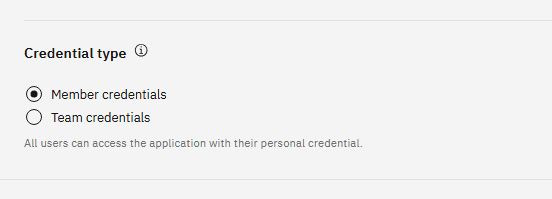
I switched to member credentials, which requires each user to connect their own Gmail account individually. This ensures proper data privacy and security.
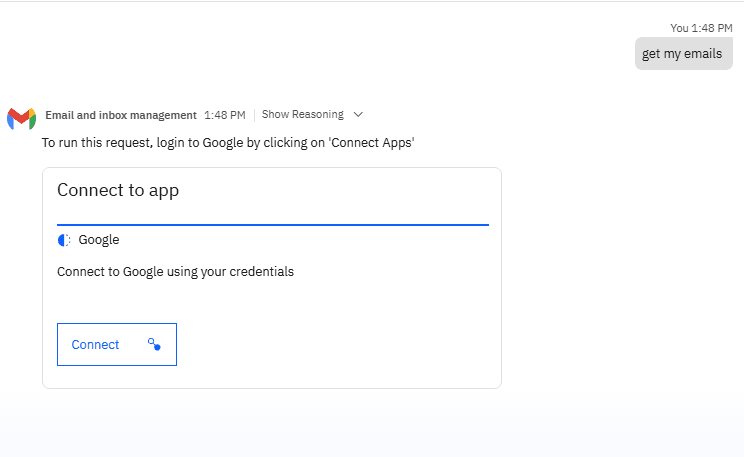
With member credentials, each user in your tenant must independently authenticate with their own Gmail account, ensuring that no one has access to anyone else's personal data.
Part 2: Setting Up Jira Integration
Step 1: Create a Jira OAuth2 App
Head to the Atlassian Developer Console:
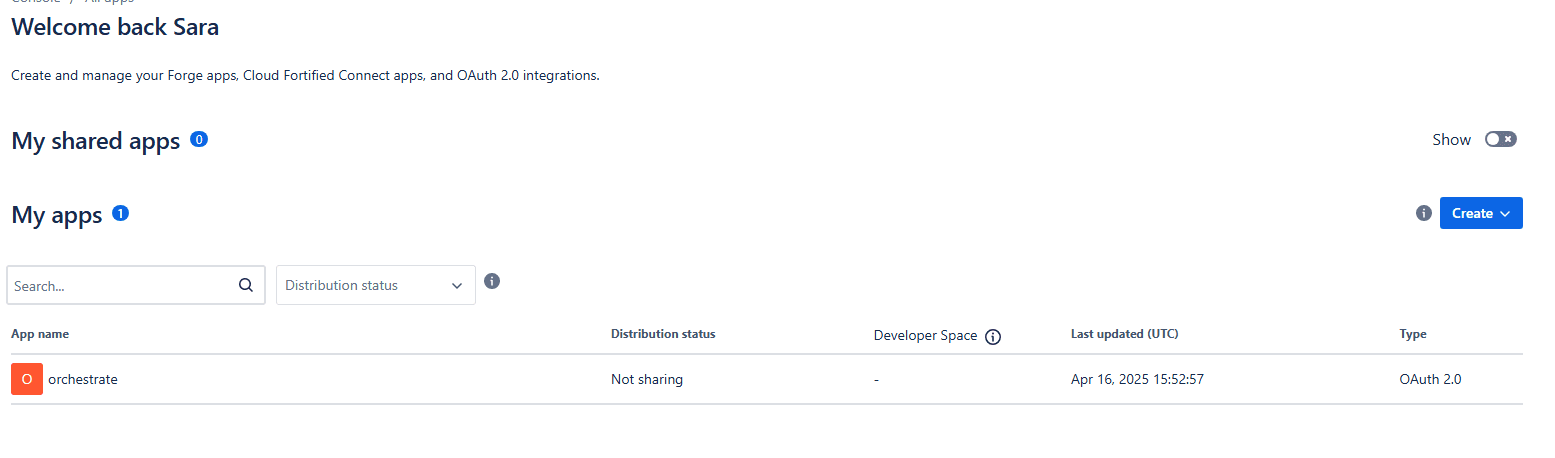
Click the Create button and select OAuth 2.0 integration:
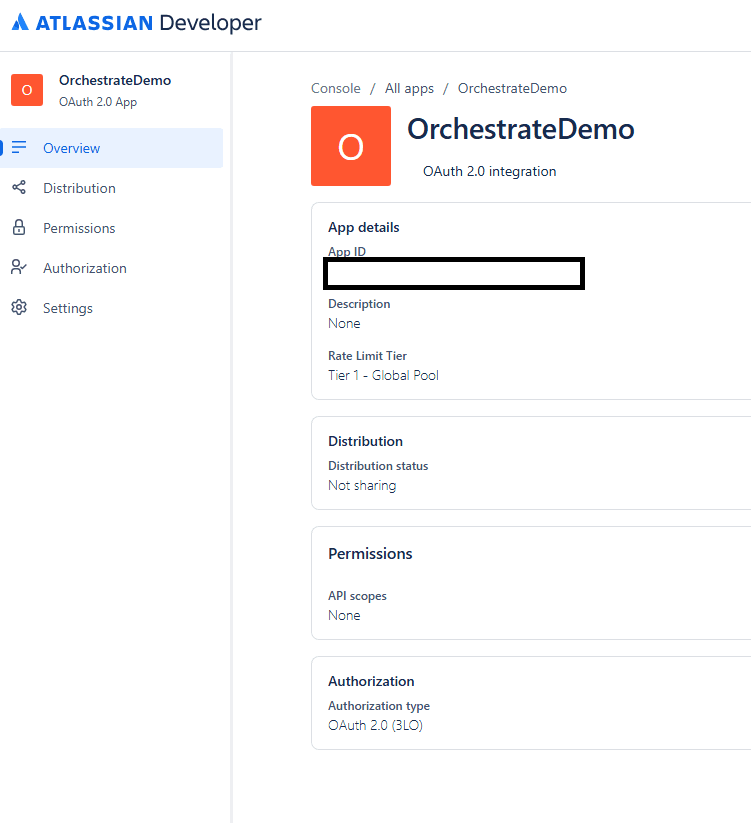
Step 2: Configure Authorization
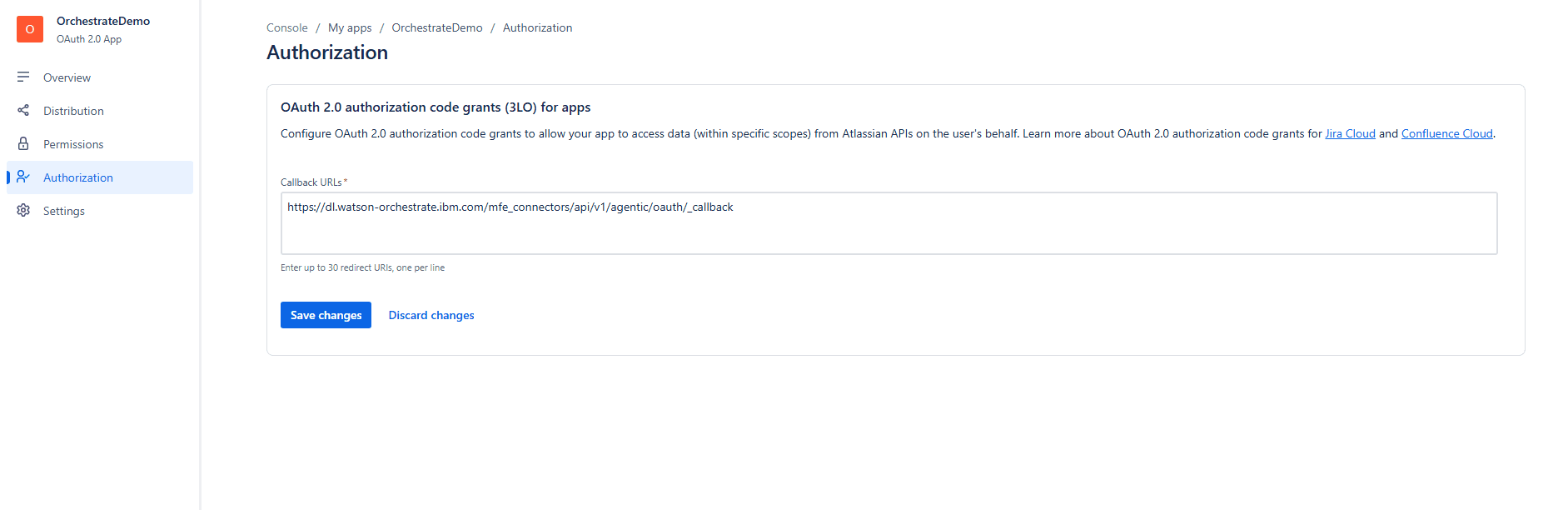
After creating your app, go to the Authorization tab and add your watsonx Orchestrate callback URL. This uses the same format as the Gmail setup:
https://dl.watson-orchestrate.ibm.com/mfe_connectors/api/v1/agentic/oauth/_callback
Step 3: Add API Scopes
Navigate to the Permissions tab and click Add to add the Jira API:
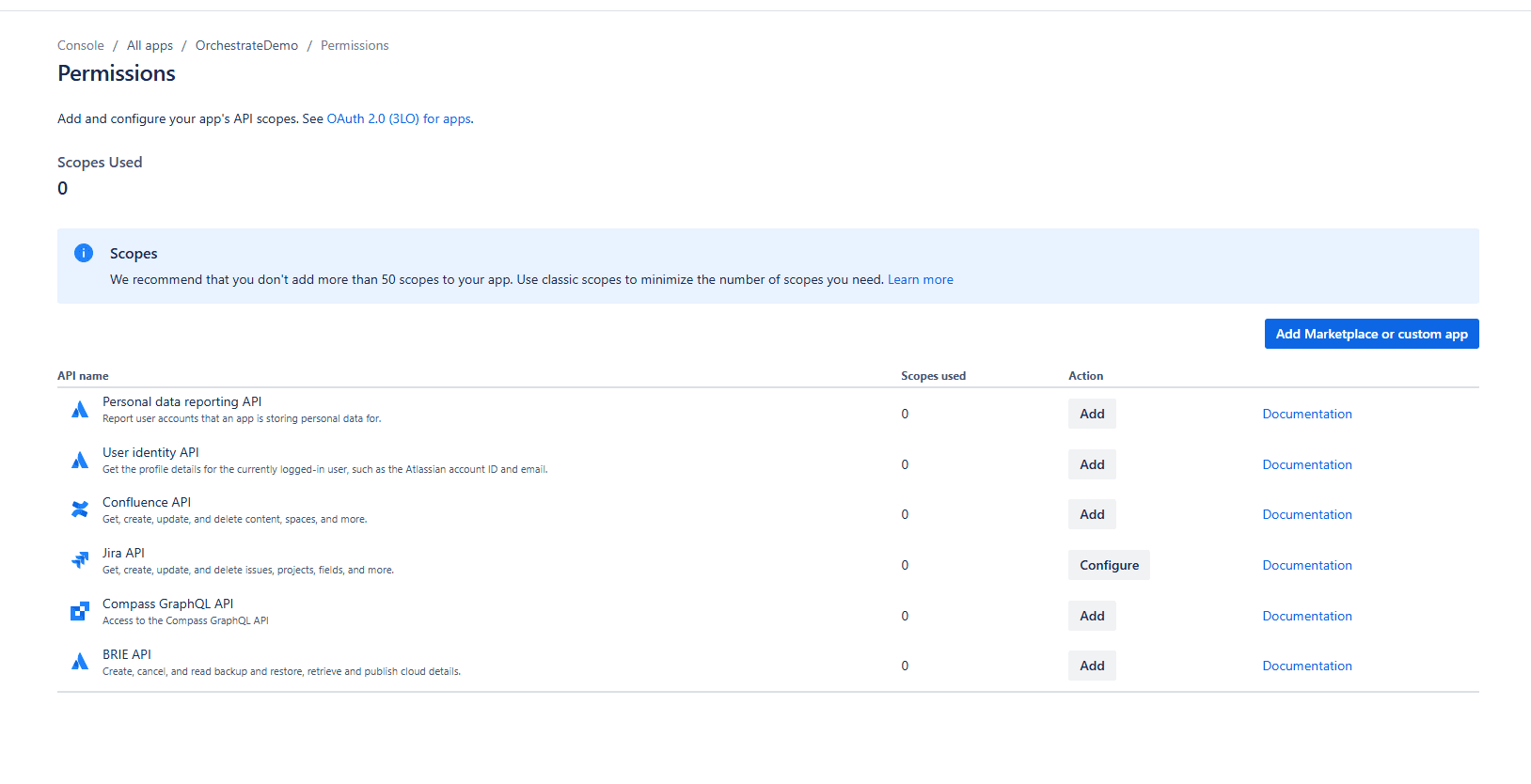
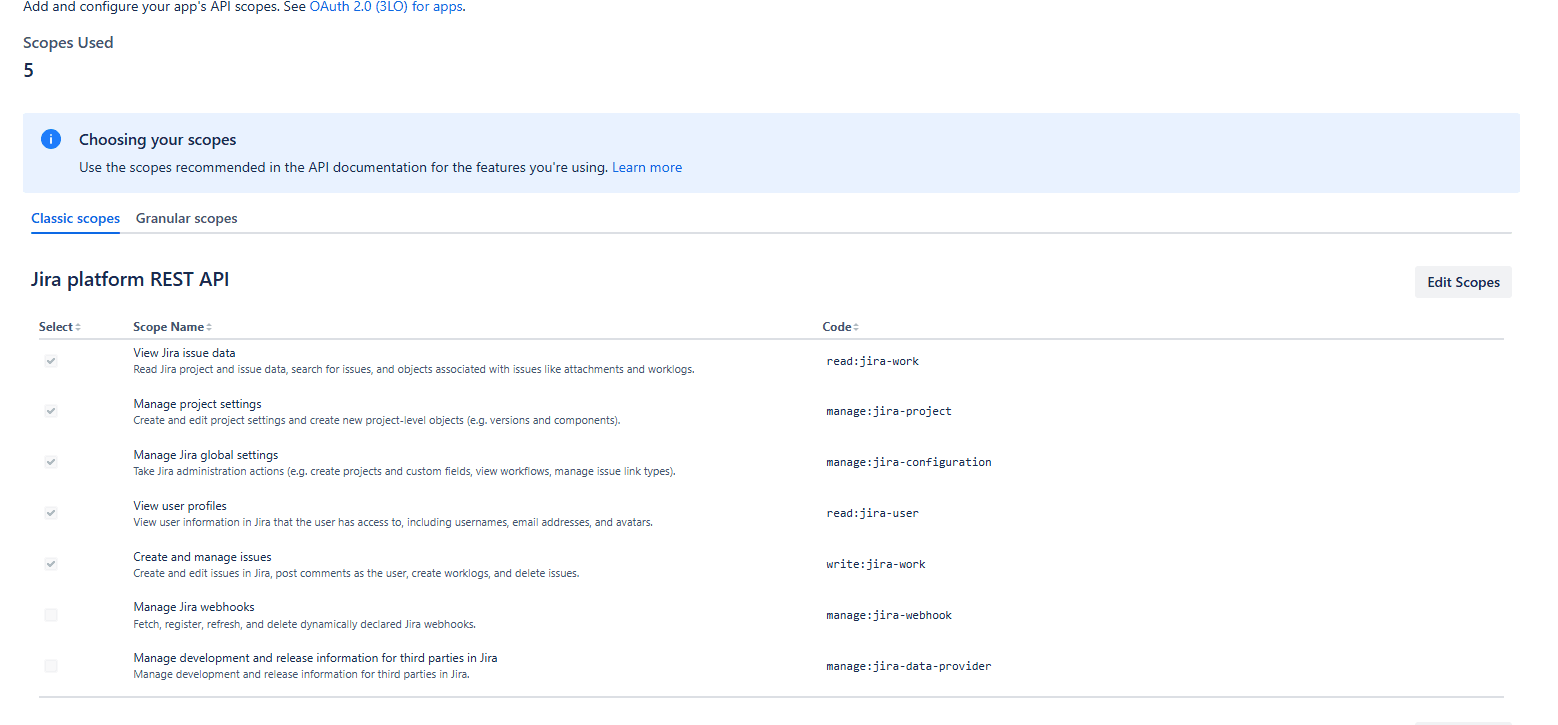
Click Configure next to the Jira API and add the necessary scopes. I used:
write:jira-workread:jira-workread:jira-usermanage:jira-projectmanage:jira-configuration
Step 4: Get Your Credentials
Go to the Settings tab to retrieve your OAuth credentials:
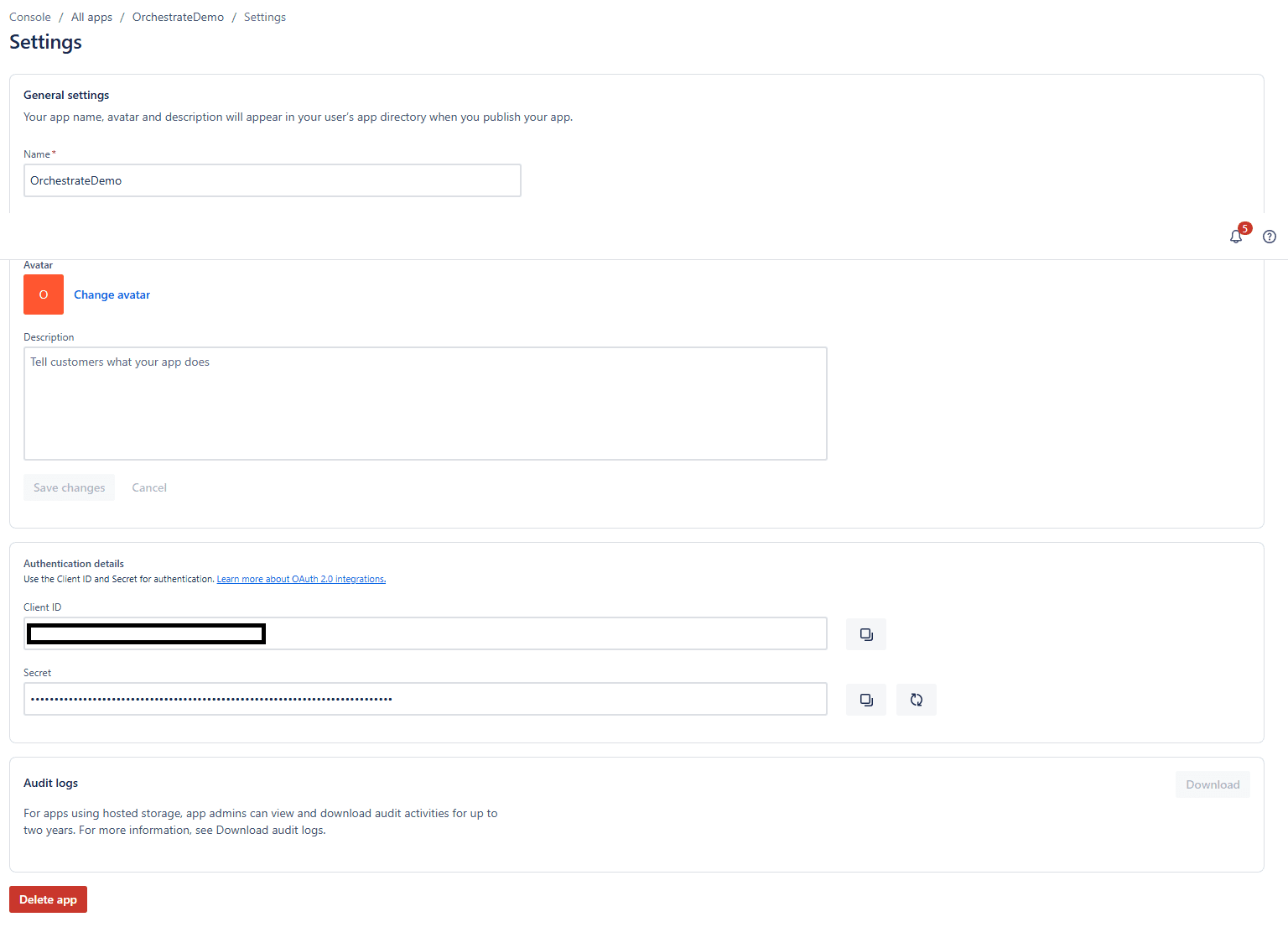
Copy your Client ID and Client Secret - you'll need these for the watsonx Orchestrate connection.
Step 5: Configure watsonx Orchestrate Connection
Return to watsonx Orchestrate's Connections page and find jira_oauth2_auth_code_ibm_184bdbd3 (or similar).
Enter your credentials and configuration:
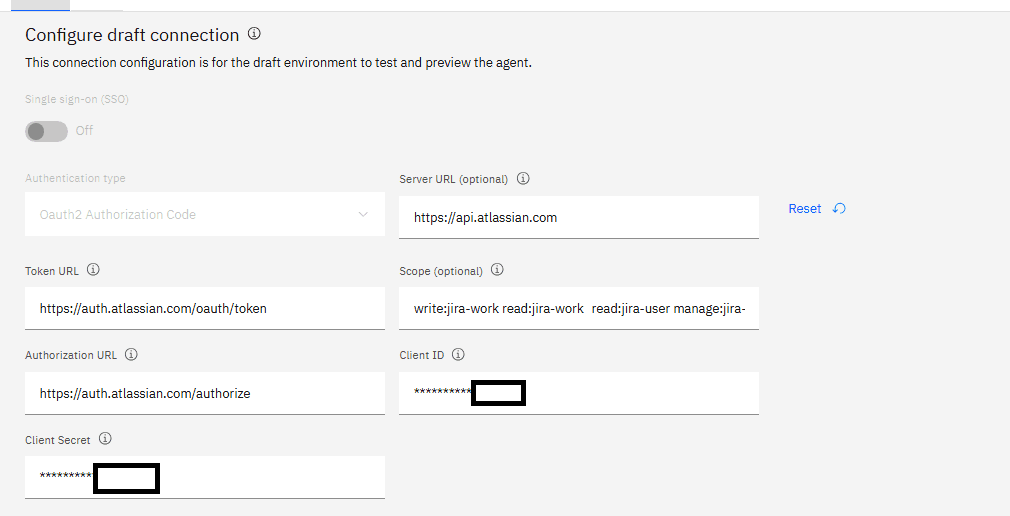
- Client ID: From Atlassian Developer Console
- Client Secret: From Atlassian Developer Console
- Auth URL:
https://auth.atlassian.com/authorize - Token URL:
https://auth.atlassian.com/oauth/token - Scopes:
write:jira-work read:jira-work read:jira-user manage:jira-project manage:jira-configuration
I set this to member credentials to ensure each user connects with their own Jira account.
Step 6: Test the Integration
Navigate to Discover from the hamburger menu, search for "jira" and filter by agents. Select the Issue and Bug Manager agent.
When you ask the agent a question (like "What projects do I have?"), you'll be prompted to connect:
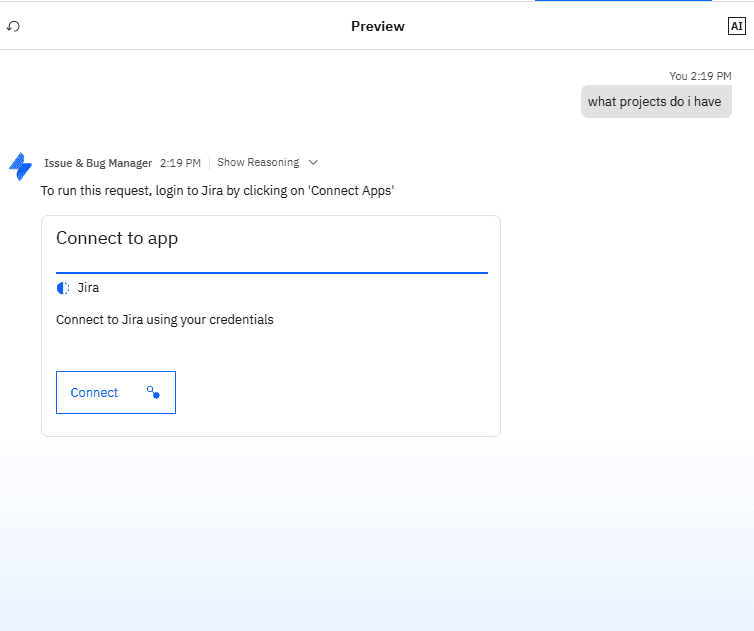
Click the connection prompt, and you'll be taken to the Jira authorization screen:
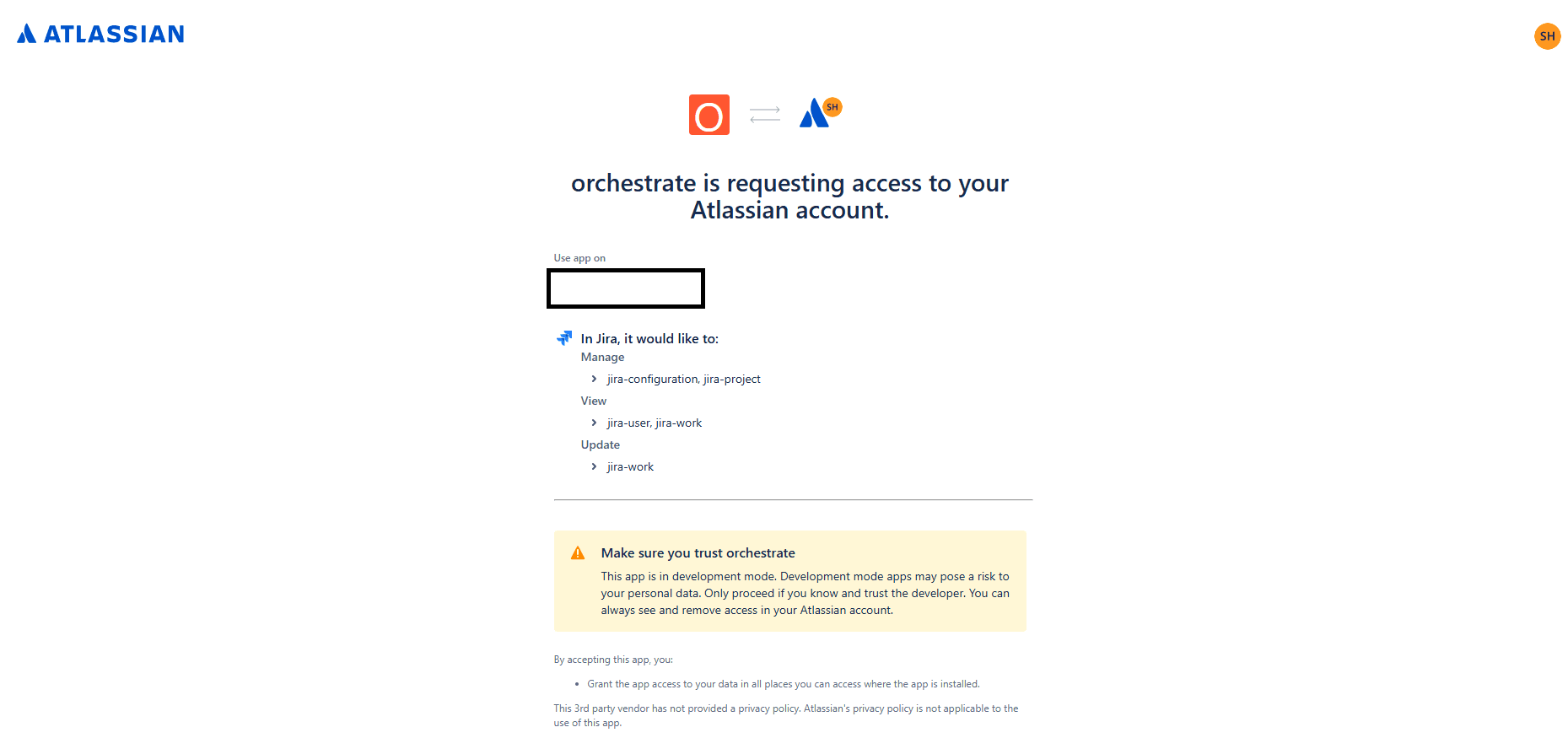
After authorizing, the integration works perfectly:
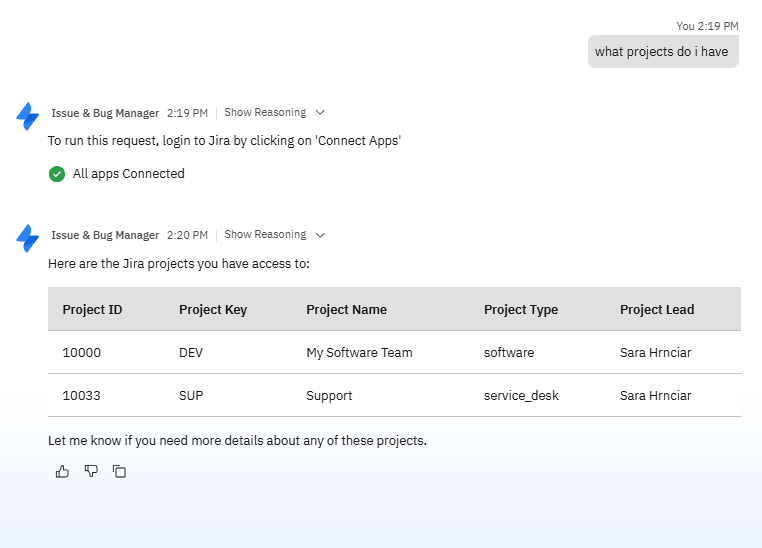
Key Takeaways
For Gmail Integration:
- Enable the right APIs - Don't forget to enable Gmail and Calendar APIs in Google Cloud Console
- Add the base URL - Include
https://www.googleapis.comin your connection configuration - Use member credentials - Protect user privacy by requiring individual authentication
- Push to production - If you encounter OAuth errors, you may need to publish your app
For Jira Integration:
- Configure scopes carefully - Make sure you add all necessary Jira scopes
- Use the correct callback URL - Follow the watsonx Orchestrate callback URL format exactly
- Test with an agent - Use the Issue and Bug Manager agent to verify your setup
General OAuth2 Tips:
- Always use member credentials for personal data access (email, calendar, etc.)
- Double-check your callback URLs - they must match exactly
- Keep your Client ID and Client Secret secure
- Test your integration thoroughly before rolling out to your team
Both integrations are now working smoothly, allowing watsonx Orchestrate agents to interact with Gmail and Jira on behalf of authenticated users. The key is patience, attention to detail, and understanding the OAuth2 flow.