Rebuilding My Game in React: A 4-Hour Migration with IBM Bob
I had a working escape room game built as a single 257-line HTML file. It worked, but it was unmaintainable. The original code itself could not have scaled to where it is at today. I needed to migrate it to React + TypeScript.
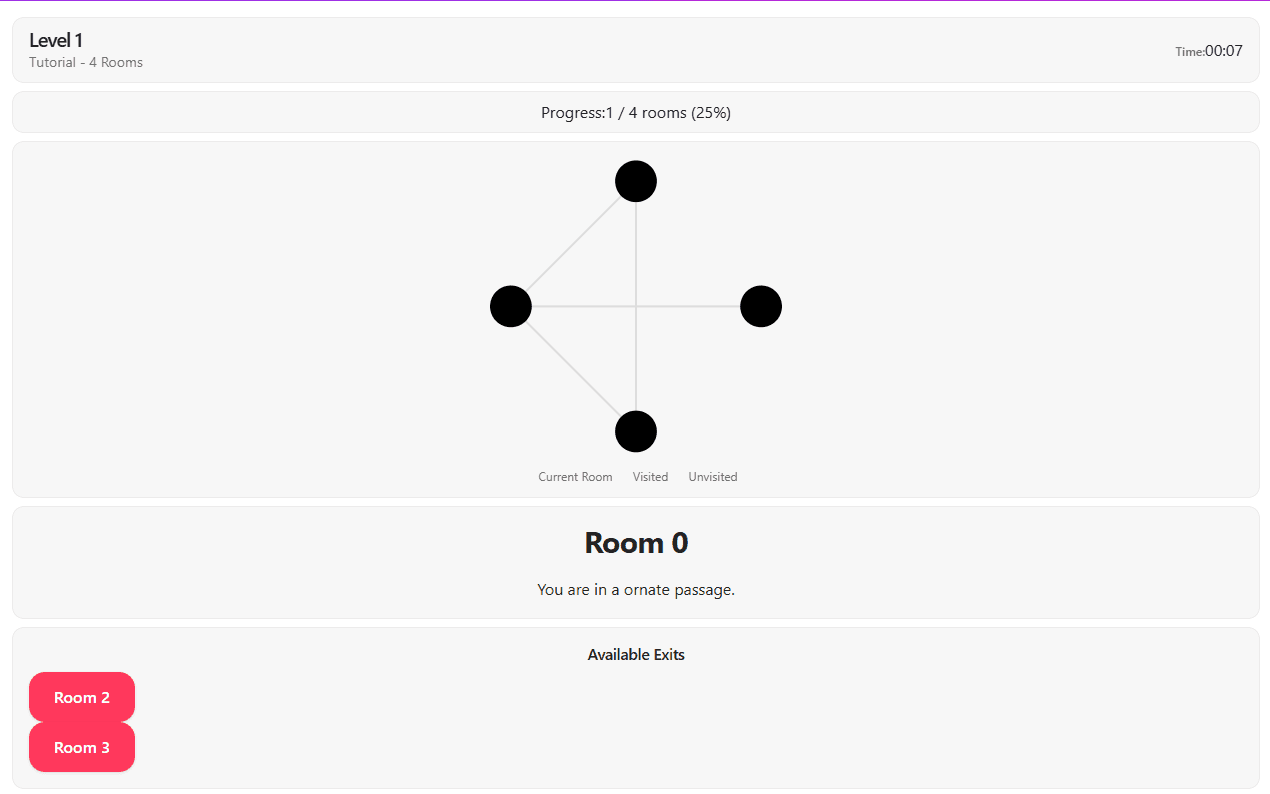
Using Bob (IBM's AI coding assistant), I completed the migration, added several new features, and improved the user interface in ~4 hours. The game evolved from a single-level experience with less than 30 seconds of gameplay to a multi-level, incremental progression system with an introductory tutorial. Without Bob? This would've taken weeks.
This isn't a tutorial on React migration—it's a guide to using Bob effectively. Here's what I learned about Bob's features, what mistakes I made, and how you can avoid them.
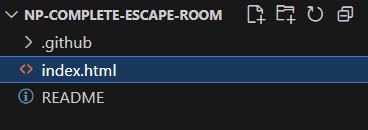
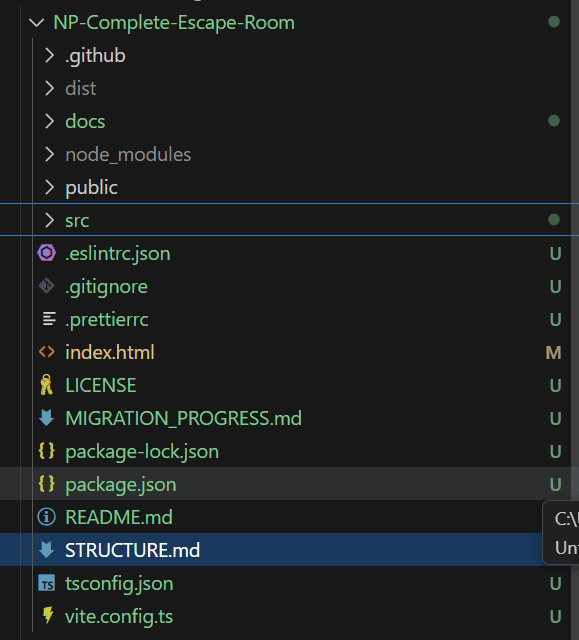
Step 1: Configure Bob Before You Start (The Secret Weapon)
This is the most important step. Most people skip configuration and wonder why Bob generates inconsistent code. Don't be that person.
Before writing any code, I created a .bob/rules directory with three markdown files. Bob reads these files and follows them throughout your project.
How .bob/rules Works
myProject/
├── .bob/
│   ├── rules/              # Workspace-wide rules (all modes)
│   │   ├── 01-general.md   # Bob's role & priorities
│   │   ├── 02-ask.md       # What to do in ask mode
│   │   └── 03-code.md      # Code standards
│   └── rules-code/         # Code mode-specific rules (optional)
└── ... (other project files)
Key points:
- Files load alphabetically (use 01-, 02- prefixes)
- Mode-specific rules override workspace rules
- Version-controllable (your whole team gets the same Bob behavior)
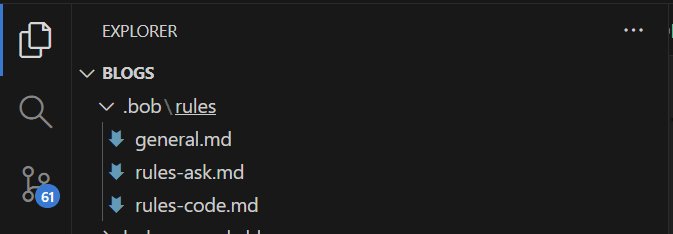
My Configuration
01-general.md - Defined Bob as a senior frontend engineer focused on:
- Clean, maintainable code
- Accessibility (WCAG 2.1 AA)
- Reusable components
02-ask.md - Told Bob to ask before implementing:
- Clarify vague requirements
- Propose scalable architecture
- Surface accessibility issues early
03-code.md - Set code standards. Example snippet from 03-code.md:
### 1. Reusable Components Are Mandatory

- Always abstract reusable UI patterns into their own files.
- Any UI element that could reasonably be reused must live in a dedicated /components directory.
- Do NOT inline large UI blocks directly inside pages or feature files.
- Prefer small, composable components over monolithic files.

Examples of reusable components:
- Buttons
- Cards
- Modals
- Form fields
- Layout wrappers
- Sections
- Navigation elements
- Reusable content blocks
Result: Bob generated consistent, production-ready code from day one. No refactoring needed.
Important Note: In my setup, I put all three files in .bob/rules/, which means they apply to ALL modes. For more precise control, you can use mode-specific folders:
- .bob/rules-ask/ for Ask mode only
- .bob/rules-code/ for Code mode only
- .bob/rules-plan/ for Plan mode only
Mode-specific rules override general rules, giving you fine-grained control over Bob's behavior in different contexts.
Pro Tip: You can also create global rules at ~/.bob/rules/ that apply to all your projects.
Step 2: Use Plan Mode First (Architecture Before Code)
Bob has different modes. Most people jump straight to Code mode. That's a mistake.
I started in Plan Mode, which is designed for architecture work. It gives Bob read access and markdown editing but prevents code changes. This forces you to think through the architecture before writing a single line.
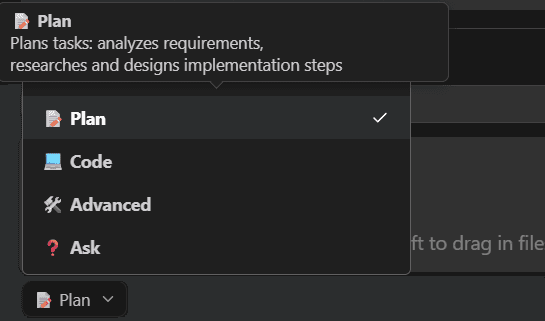
I asked: "Create a migration plan for this HTML file to React + TypeScript."
Bob generated an 8-phase plan with Mermaid diagrams showing component hierarchy and state flow. The plan prevented scope creep and gave me a clear roadmap.
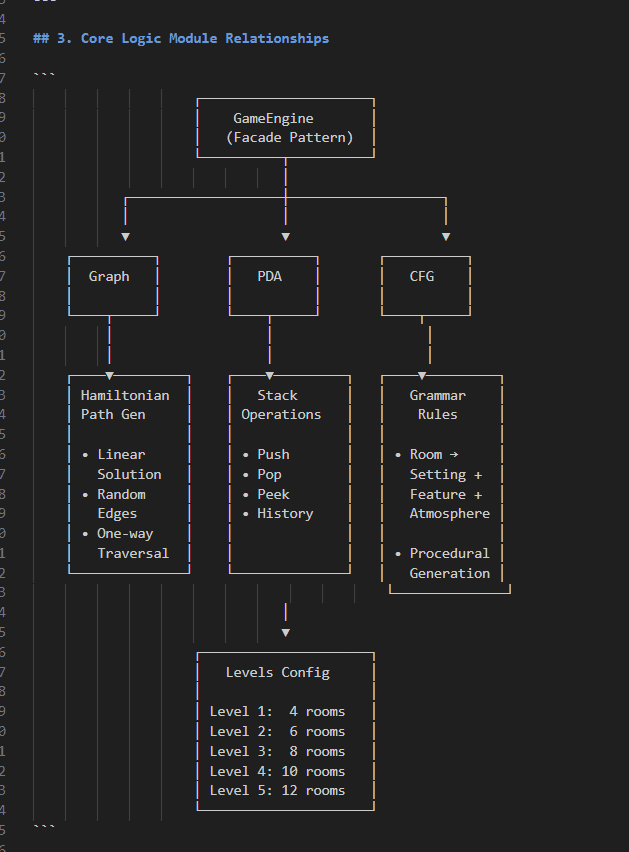
Bob's Modes:
- Plan Mode: Architecture and strategy (use this first!)
- Ask Mode: Clarification and questions
- Code Mode: Implementation
- Advanced Mode: Complex features with MCP tools
Step 3: Bob's Hidden Features (That I Wish I'd Known)
Enhance Prompt (Star Icon)
I made a vague request: "Modernize the UI."
Bob gave me generic results. My fault—vague input = vague output.
Then I discovered the Enhance Prompt feature (Star icon). It transforms vague requests into specific ones:

Input:
"Modernize the UI"
Enhanced Output:
Create a modern, visually appealing UI design for a blog post page displaying technical content about migrating HTML to React using Bob AI. The design should include:

1. A clean, contemporary layout with proper typography hierarchy for markdown content including headings (h1-h3), paragraphs, code blocks, and lists
2. Syntax-highlighted code blocks with a dark theme and proper formatting for file paths, directory structures, and code snippets
3. Visual distinction for special elements like "Pro Tips", "Important Notes", and "Results" sections using cards or callout boxes
4. Responsive design that works seamlessly on desktop, tablet, and mobile devices
5. Modern color scheme with good contrast ratios for accessibility
6. Smooth scrolling and subtle animations for interactive elements
7. Professional spacing and padding throughout to improve readability
8. Support for inline code formatting that stands out from regular text
9. Clear visual separation between different sections of the blog post
10. Modern font choices optimized for technical content readability (consider using a sans-serif for body text and a monospace font for code)
11. Hover states and interactive feedback for any clickable elements
12. A cohesive design system with consistent colors, spacing, and component styles throughout

The UI should feel modern and professional while maintaining excellent readability for technical documentation and code examples.
Lesson: Use the Star icon when you're not sure how to phrase something. It saves time and produces better results.
Context Mentions (@ Feature)
My biggest mistake: Bob generated SASS code using wrong variable names ($primary instead of $color-primary). Build failed. I spent an hour fixing it manually.
What I could have done: Context mentions.
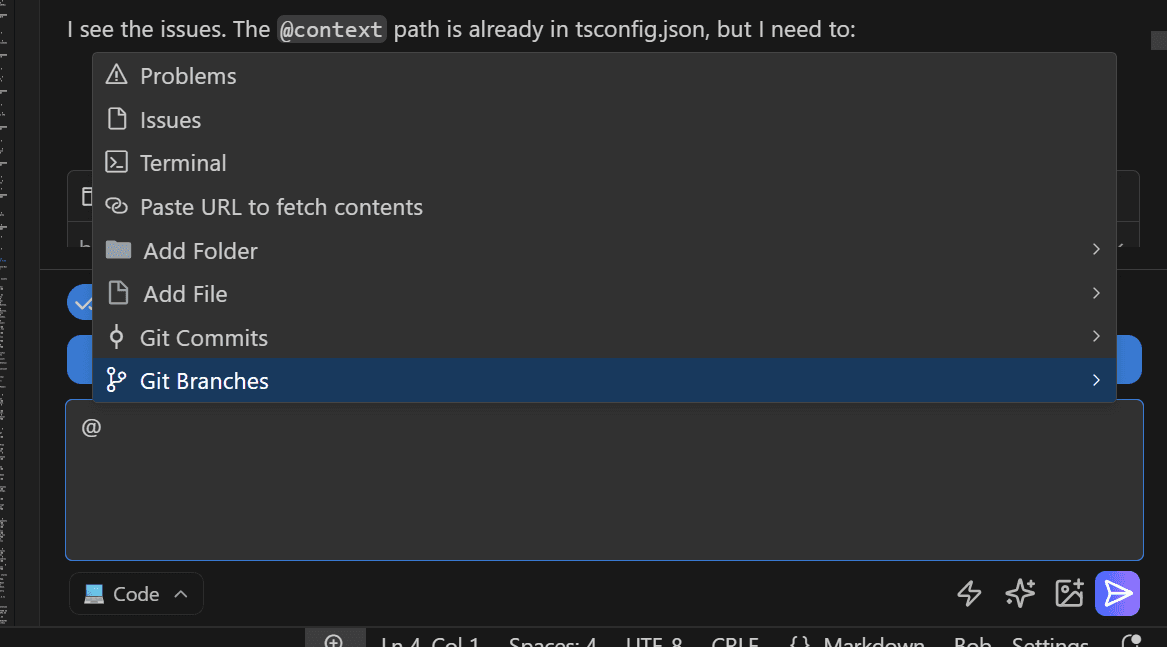
If I had typed @/src/styles/_variables.scss in my prompt, Bob would have read the file and used the correct variable names.
What you can mention with @:
-
Files - @/path/to/file.ts
- Bob reads the file and uses exact naming conventions
- Perfect for referencing config files, types, or existing components
-
Folders - @/path/to/folder
- Bob gets context about the entire directory structure
- Useful for understanding project organization
-
Problems - @problems
- Bob sees all current errors and warnings in your workspace
- Helps Bob fix issues without you copying error messages
-
Terminal Output - @terminal
- Bob reads your terminal history
- Great for debugging build errors or test failures
-
Git Commits - @a1b2c3d (commit hash)
- Bob analyzes specific commits
- Useful for understanding what changed and why
-
Git Changes - @git-changes
- Bob sees your unstaged/staged changes
- Perfect for code reviews or commit message generation
-
URLs - @https://example.com
- Bob fetches and reads web content
- Useful for referencing documentation or API specs
Pro tip: You can combine multiple mentions in one prompt:
@/src/components/Button.tsx @/src/styles/_variables.scss Update the Button component to use our design system colors
Lesson: Always use @ to give Bob context. It's the difference between generic code and code that fits perfectly into your existing codebase.
Checkpoints (Undo Button)
When I saw TypeScript errors after Bob created files, I panicked and started giving Bob "fix" instructions.
Wrong move. The errors were just missing dependencies (npm install fixed them). My "fixes" would have broken working code.
What I should have done: Use Bob's automatic checkpoints.
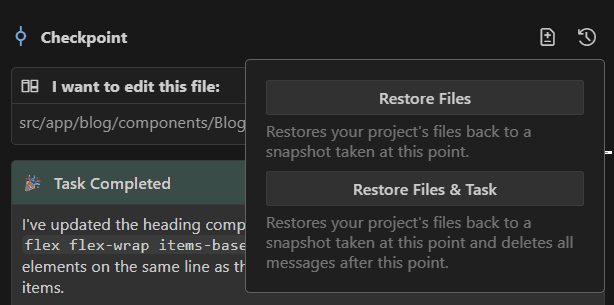
Bob creates checkpoints during tasks. Click "Restore Files and Task" to undo changes. It's like Git, but for AI conversations.
Lesson: When you see errors, pause. Check if it's an environmental issue before asking Bob to "fix" it.
Step 4: Features I Didn't Use (But You Should)
After finishing, I read Bob's documentation and facepalmed. Here are powerful features I missed:
1. Code Reviews (/review)
Type /review before committing. Bob analyzes your changes and catches issues.
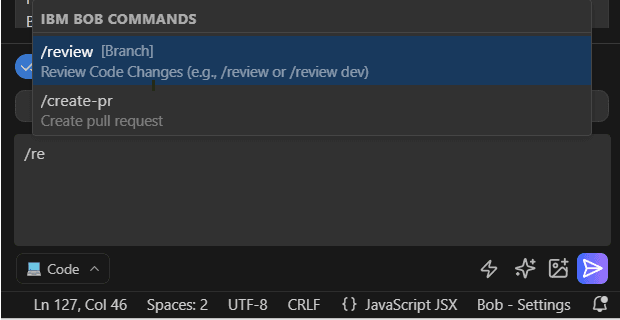
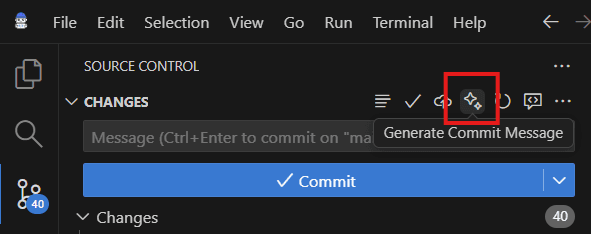
2. Commit Message Generation
Click the ✨ icon in Source Control. Bob writes your commit message from staged changes.
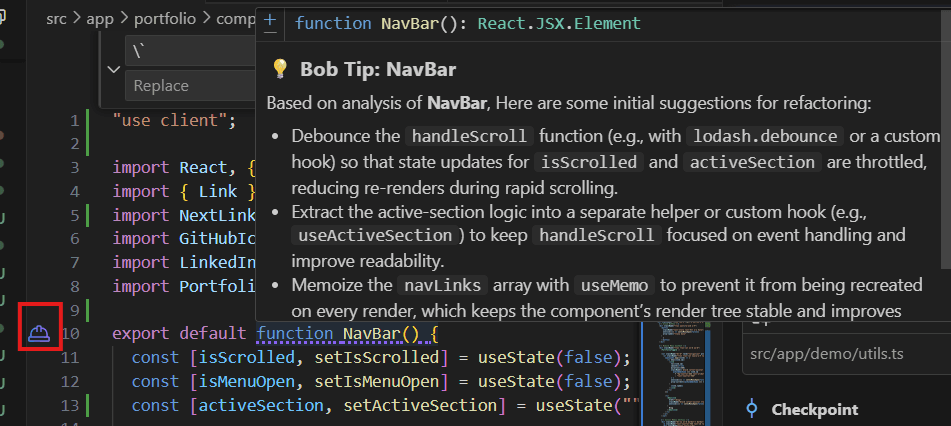
3. Bob Tips
Bob proactively suggests refactorings as you work.
4. Literate Coding
Write natural language instructions in your code (they appear blue). Press Cmd+Enter and Bob converts them to implementation.
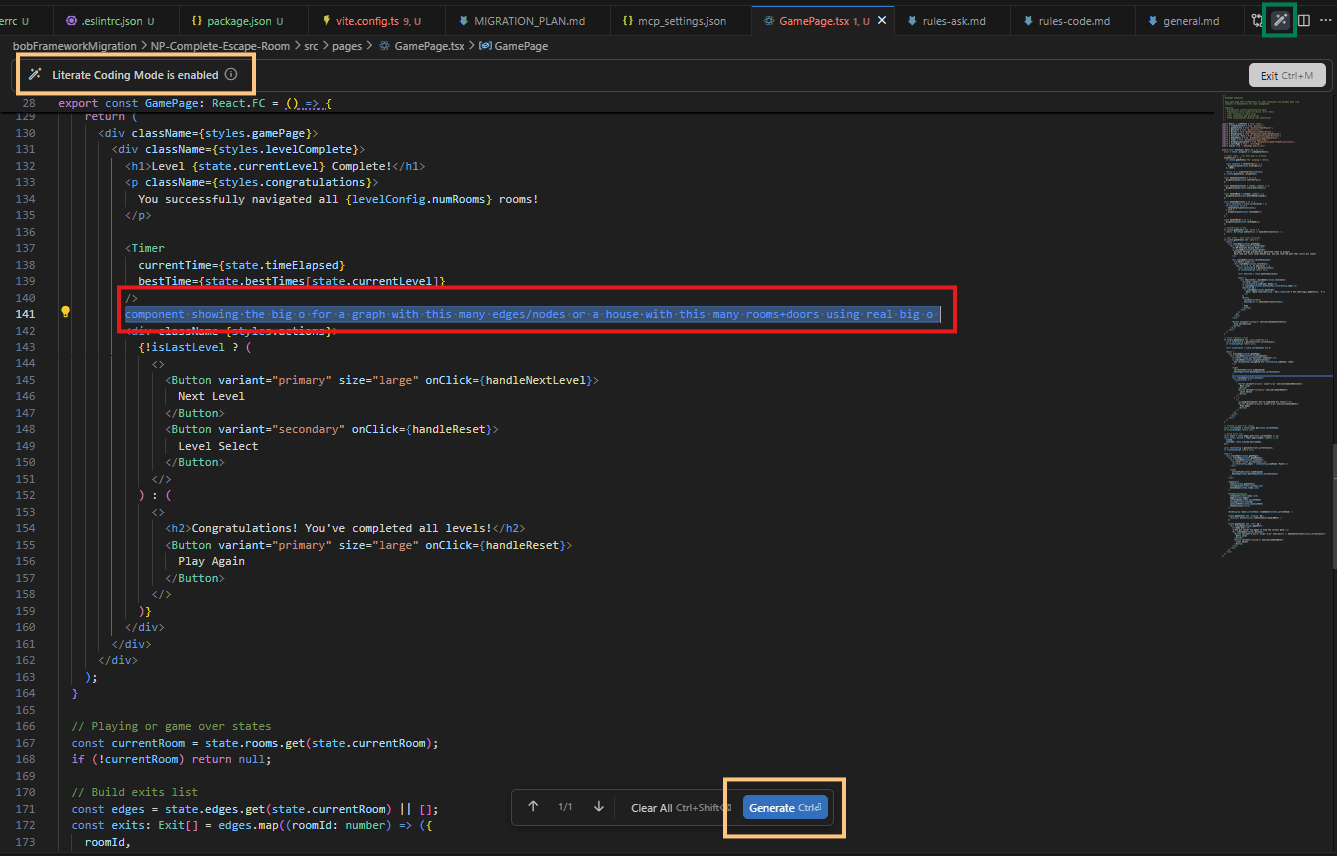
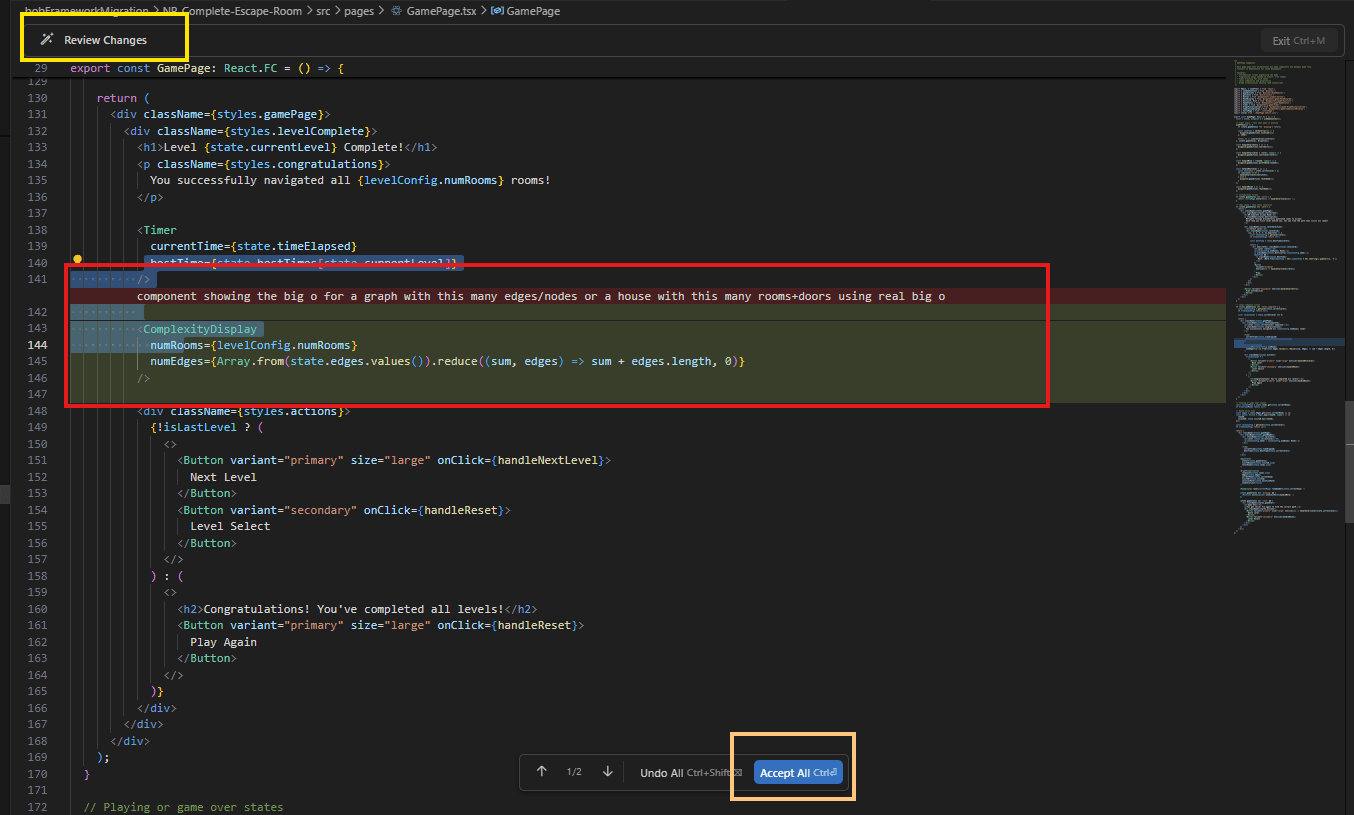
This feature is great for building features where describing what you need is faster than coding it from scratch.
The Results
Before: 257 lines in one HTML file
After: Professionally structured codebase with 40+ modular components
Time: ~4 hours (would've been weeks without Bob)
The app now has:
- Clean React + TypeScript architecture
- WCAG 2.1 AA accessibility
- Multi-level progression system
- Interactive graph visualization
- Tutorial system
- Production-ready code
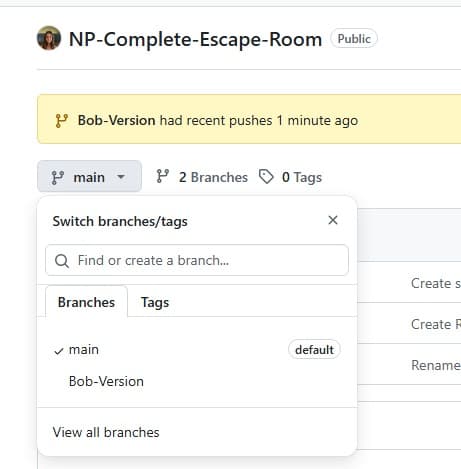
You can view the original repository as well as Bob's updated version here
Key Takeaways
Do This:
- Configure .bob/rules first - Define Bob's behavior before writing code
- Start with Plan Mode - Architecture before implementation
- Use @ for context - Reference existing files in your prompts
- Be specific - Use Enhance Prompt (✨) if you're not sure how to phrase something
- Use checkpoints - Don't panic-fix errors; restore and reassess
Don't Do This:
- Skip configuration (you'll get inconsistent code)
- Jump straight to Code mode (you'll make architectural mistakes)
- Make vague requests (you'll get generic results)
- Ignore environmental errors (npm install before asking Bob to "fix" things)
- Forget to review generated code (Bob is good, not perfect)
Your Turn
Want to try Bob on your next project? Here's your starter checklist:
Before coding:
- [ ] Create .bob/rules/ directory
- [ ] Write 01-general.md (Bob's role and priorities)
- [ ] Write 02-ask.md (when to ask questions)
- [ ] Write 03-code.md (code standards)
During development:
- [ ] Start in Plan Mode for architecture
- [ ] Use @ to reference existing files
- [ ] Use ✨ Enhance Prompt for vague ideas
- [ ] Check checkpoints before "fixing" errors
- [ ] Run /review before commits
After coding:
- [ ] Let Bob generate commit messages
- [ ] Review all generated code
- [ ] Test thoroughly
Bob isn't magic—it's a tool. But configured properly and used effectively, it's an incredibly powerful partner for building production-quality software.
Time saved on this project: Several weeks Time invested learning Bob: Worth every minute
Try it on your next migration. You'll be surprised how much faster you move.